
Each Harmonize Analytics dashboard follows a standardized structure to ensure users can intuitively explore KPIs, trends, and detailed data — without needing advanced technical skills. The three primary sections are:
-
KPIs (Top Section)
-
Charts (Tab 1)
-
Data (Tab 2)
-
Filters (Accessible via Filters Button)
KPIs – Key Performance Indicators
Location: Top of each dashboard
Purpose: Instant visibility into your most important metrics

Features:
-
Bold, prominent display of current values (e.g., Sales, Approval Rate)
-
Period-over-period comparisons (Last Completed month compared to the month prior) with arrows and color-coded indicators:
-
▲ Green = Positive Trend
-
▼ Red = Negative Trend
-
Tip: Hover over trendlines to view historical values.
Charts – Visual Trends
Location: First tab under KPIs
Purpose: Understand how your metrics evolve over time or across groups
Chart Types:
-
Rate Time Series (stacked line): e.g., Approval Rate by Card Type
-
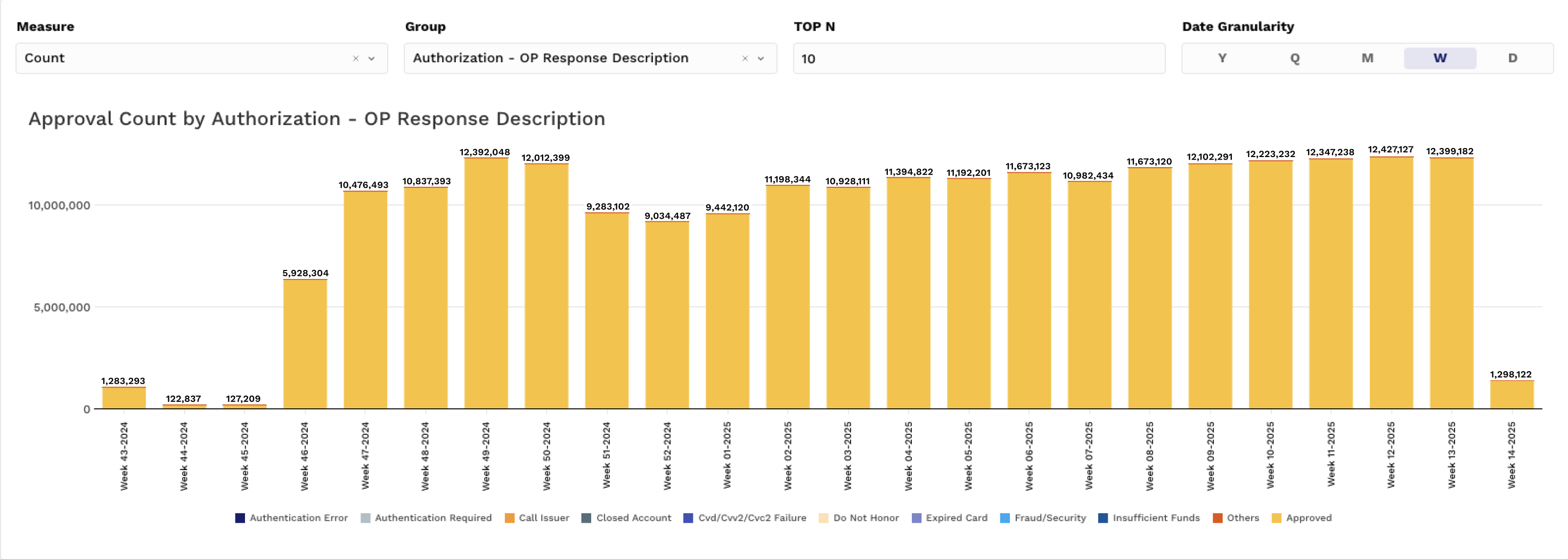
Total Time Series (stacked bar): e.g., Sales Amount by Acquirer
-
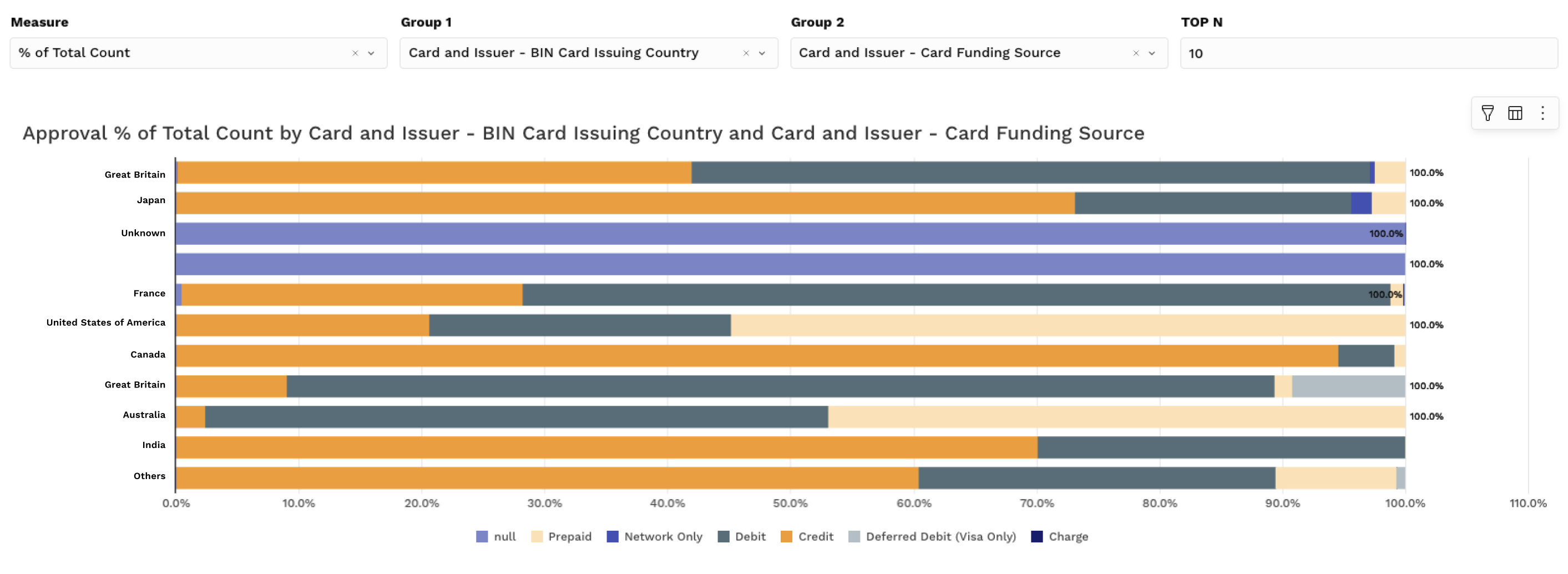
Group Comparison (stacked bar): e.g., Chargeback % by Card Network & BIN
Controls:
-
Group by Fields – Choose a pre-defined group (e.g., Acquirer, Card Network)
-
Y-axis selector – Count, Amount, Rate, % of Total
-
Date Granularity – Year, Quarter, Month, Week, Day
Pro Tip: Hover over bars/lines to reveal values, then click to filter the full dashboard.
Pivots – Granular Data Tables
Location: Second tab
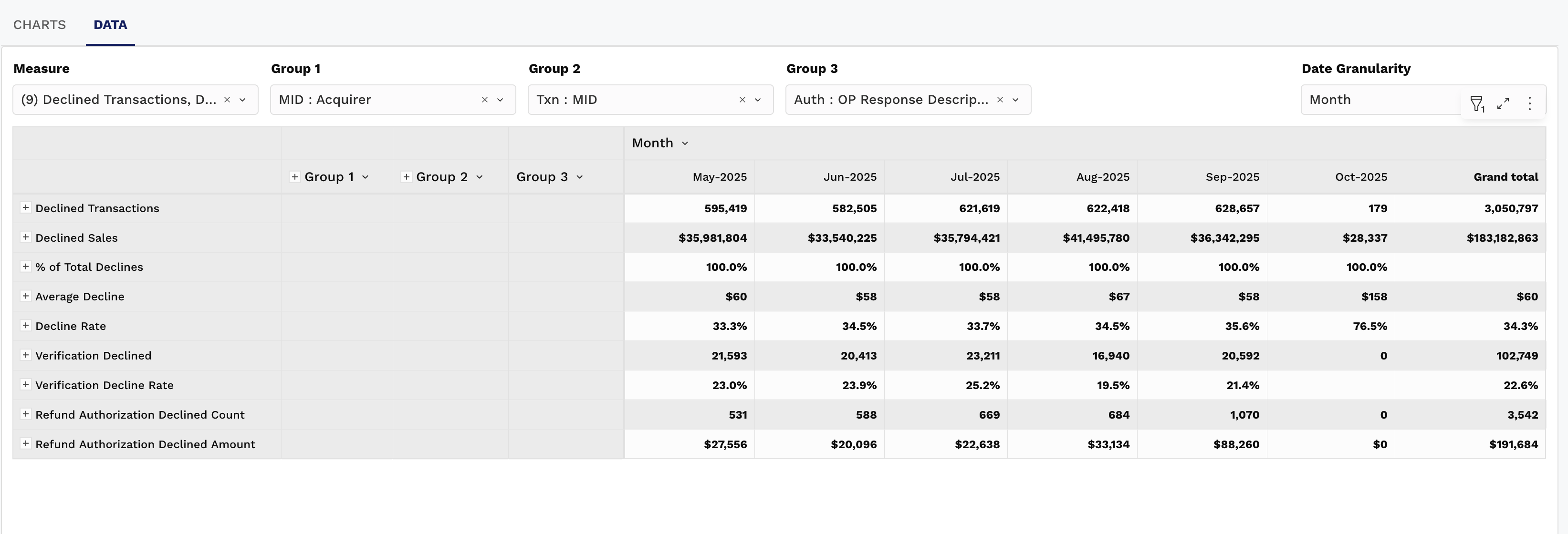
Purpose: Analyze segmented data with more detail
Features:
-
Pre-defined groupings by dashboard type (e.g., Card, BIN, MID)
-
Up to 3 levels of grouping (or 6 for Fees) (e.g., Card Type → Issuer → BIN)
-
Drill into trends by row
-
Show/hide values and group fields
-
Default time groupings (Month) with support for Day, Week, Quarter, Year
Use pivot menus to toggle layout or export data.
Filters – Tailor Your View
Location: Top right → “Filters” button
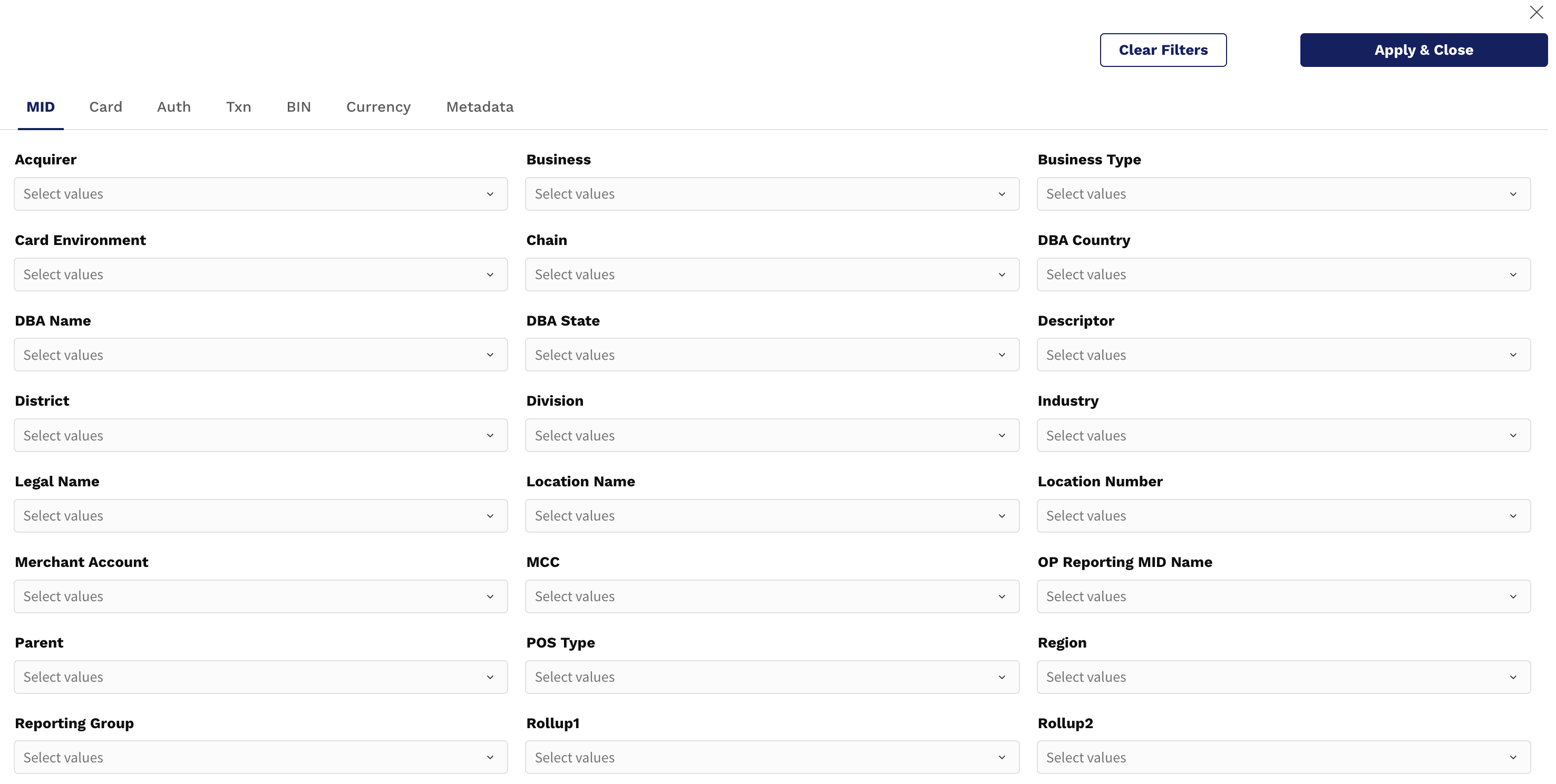
Purpose: Refine what’s displayed across KPIs, Charts, and Pivots
Field Group Filters
-
Filter by specific merchants, issuers, card brands, etc.
-
Uses the same predefined groups as your charts and pivots
Hover Actions & Element Menu
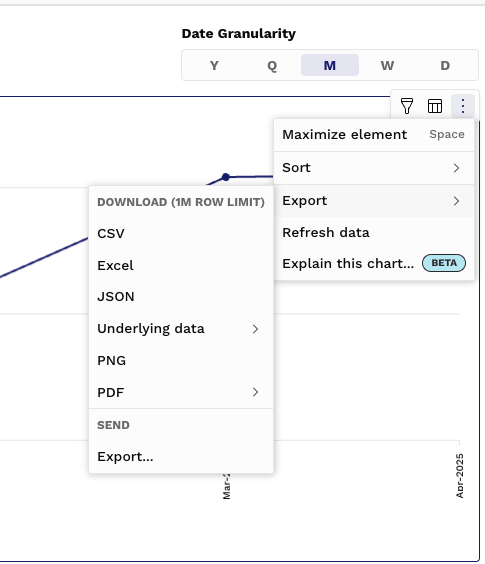
When you hover over any KPI, chart, or pivot table, you'll see a three-dot menu (︙) in the upper-right corner of the element. This opens a powerful interaction menu:
|
Option |
What It Does |
|---|---|
|
Maximize Element |
Expands the chart/table to full screen for focused analysis |
|
Sort |
Reorder grouped elements by value, name, or metric |
|
Export |
Download the chart or table in CSV, Excel, JSON, or PDF |
|
Refresh Data |
Re-pulls the most recent data for the current visualization |
|
Explain This Chart…
|
AI-powered insights to help explain what you're seeing and why certain trends may be occurring |
Filters — Customize the View
Click the Filter icon in the dashboard or use the global Filters panel to refine your view by:
-
Date Range
-
Method of Payment (MOP)
-
Issuer, BIN, Acquirer
-
Merchant ID or Group
-
Card Brand, Region, etc.
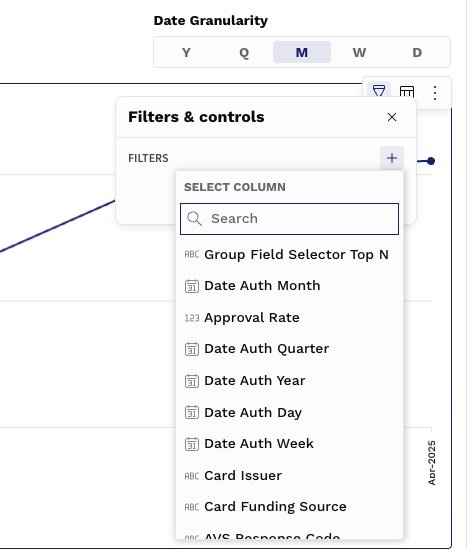
Pivot Tip:
When viewing pivot tables, filters are especially helpful for narrowing large datasets down to a manageable view before exporting. For example:
Show Underlying Data
For any chart or KPI, you can choose “Show underlying data” to see the summary-level records that power the visualization.
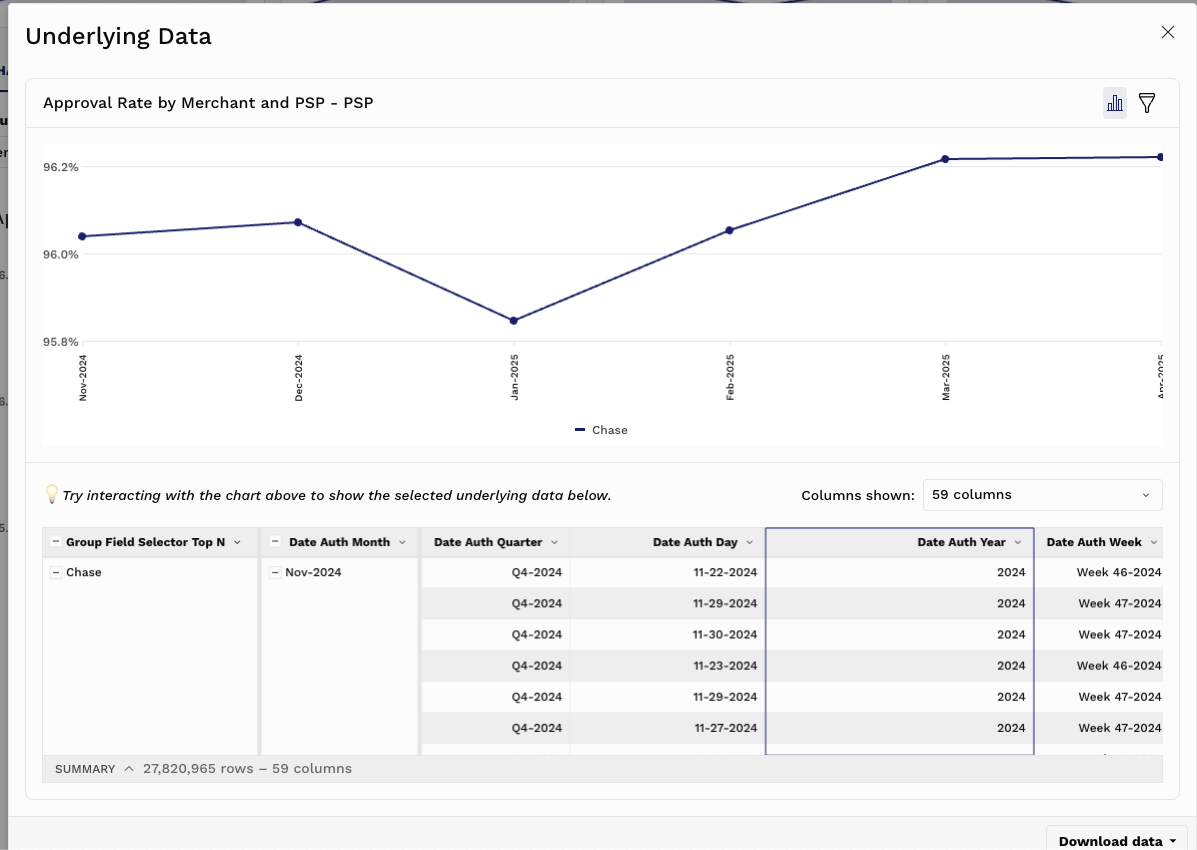
Use this feature to:
-
Validate metric calculations
-
Review grouped values (e.g., all Acquirers in a stacked bar)
-
Get confidence before acting on a visual trend
Explain This Chart… (BETA)
Our AI-assisted “Explain This Chart…” feature helps interpret what you're seeing:
-
Detects trends, outliers, and changes in chart patterns
-
Offers natural-language explanations of what may be driving performance
-
Helps non-technical users and business stakeholders understand key shifts at a glance
Use this as a starting point to ask better questions or dig deeper with filters and pivots.
Exporting Data
All dashboard elements can be exported via the Export option in the menu:
|
Format |
Use Case |
|---|---|
|
CSV |
Import into Excel, Sheets, or a database |
|
Excel |
Finance-ready format for structured reporting |
|
JSON |
Ideal for programmatic use or API tools |
|
|
Shareable visual format for presentations or documentation |
Exports reflect all active filters — always apply filters first for clean downloads.
Summary
These core functions are consistent across all Harmonize dashboards, giving you:
-
Full control over what you’re viewing
-
Instant transparency into how metrics are calculated
-
Flexible outputs for team workflows and reporting