
Not all reports listed below are required for every engagement; please confirm with your Optimized Payments Account Manager which reports you should download.
Monthly Finance Report
Path: Company account → Reports → Finance → Monthly finance → Generated reports / Manage report
-
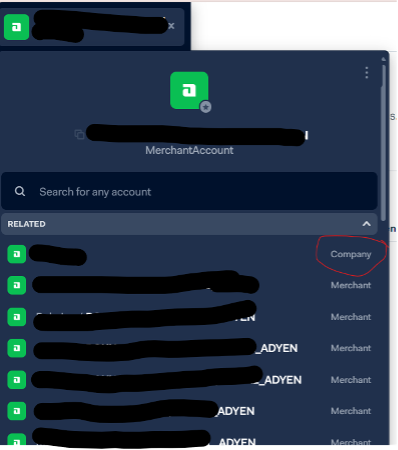
Log into Adyen and select your company-level account at the top of the account switcher. All of that company's merchant accounts will appear below it.
-
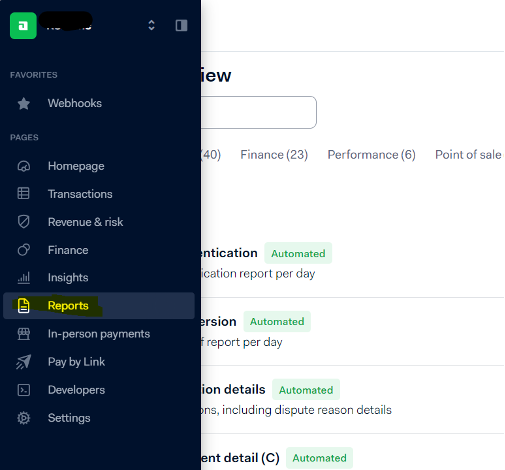
Click Reports in the left-hand menu.
-
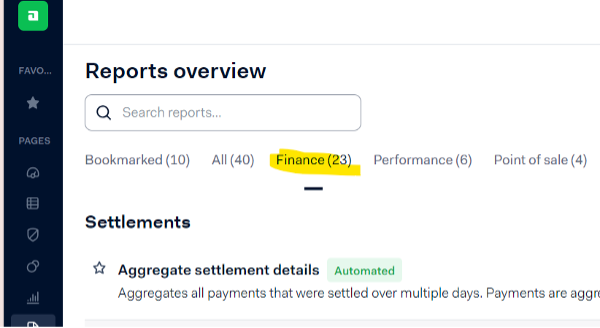
On the Reports overview page, click the Finance tab.
-
Find Monthly finance in the list — it's the monthly summary of your account balances and transactions.

-
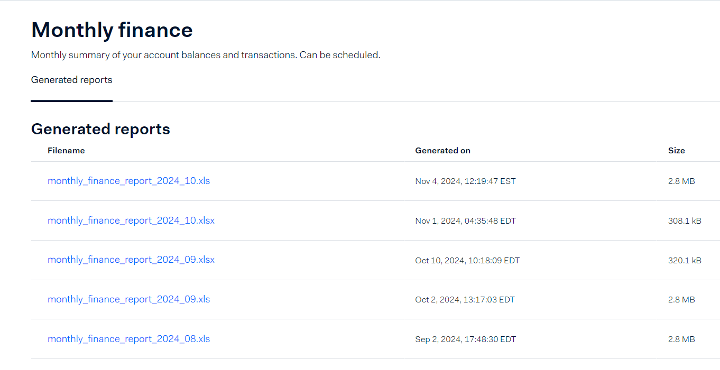
If reports are already listed under Generated reports, click a filename to download it.
-
If no reports are available yet, click Manage report in the top right, then choose how to generate one:
-
Manual (generate once) — creates a one-time report for a specific month
-
Automatic (generate on a schedule) — runs the report automatically every month

-
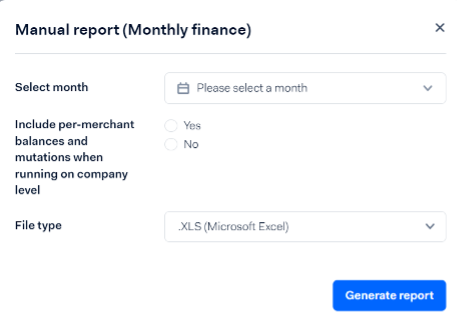
If you chose Manual, fill in the report details:
-
Select month — choose the month you want the report to cover
-
Include per-merchant balances and mutations when running on company level — choose Yes or No
-
File type — choose the format you'd like to download (for example, .XLS)
-
Click Generate report. Reports can take a few minutes to process — once it's ready, it will appear under Generated reports so you can download it.