Not all reports listed below are required for every engagement; please confirm with your Optimized Payments Account Manager which reports you should download.
FIN-0011 Service Charge Detail Report
A detailed breakdown of the interchange, assessment, and processing fees charged on your transactions for a given month.
Path: Paymentech Online → Report Center → Monthly Reports → FIN-0011 → Search → Search Now → Download
-
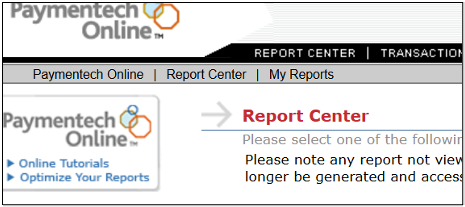
Log into your Paymentech Online account, then go to Report Center.
-
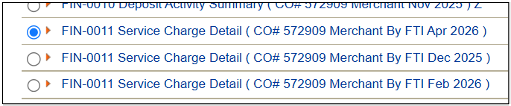
Under Monthly Reports, select the FIN-0011 (Service Charge Detail) report for the company and month you need.
-
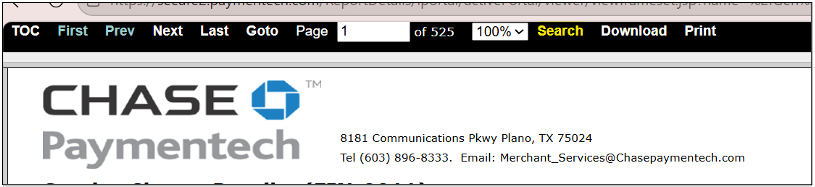
In the report viewer toolbar, click Search.
-
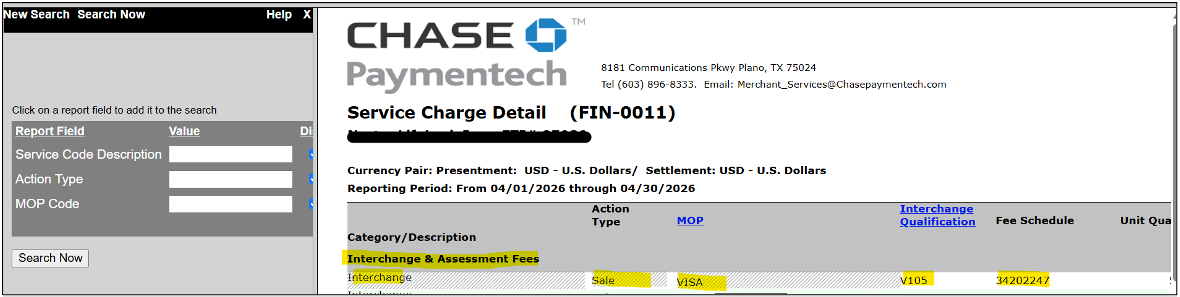
Build your search by clicking fields directly in the report, left to right, across the first row under Interchange & Assessment Fees:
-
-
Click Interchange under Category/Description
-
-
-
Then click each value that follows in that same row, in order — Action Type, MOP, Interchange Qualification, Fee Schedule, Unit Quantity, Unit Fee, Amount, Percent Rate, ending with Total Charge
-
-
-
Each click adds that field to the search panel on the left
-
-
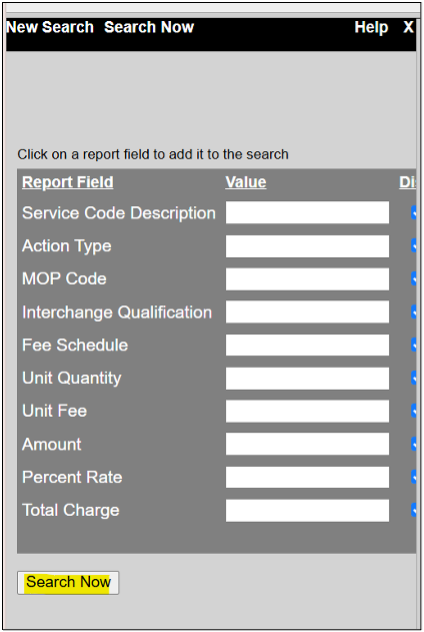
Once every field has been added, the search panel should list all ten fields with empty value boxes, like this:
-
Scroll to the bottom of the panel and click Search Now.
-
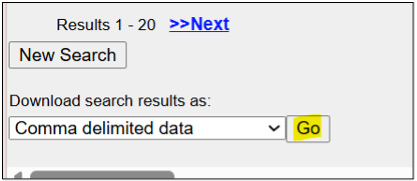
On the results page, set the download dropdown to Comma delimited data, then click Go.
-
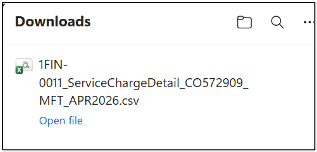
Your file downloads as a CSV — you'll see it appear in your Downloads folder.
-
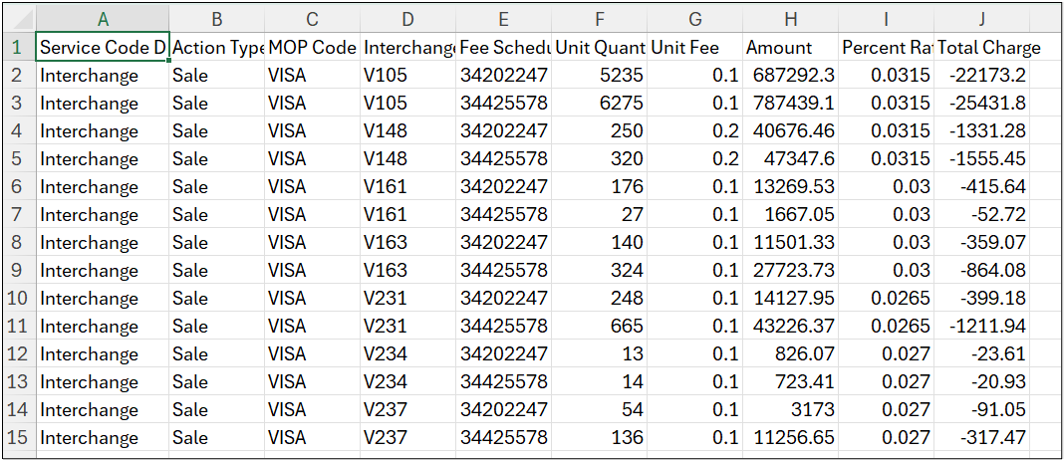
Open the file to confirm it matches this layout, with columns for Service Code Description, Action Type, MOP Code, Interchange Qualification, Fee Schedule, Unit Quantity, Unit Fee, Amount, Percent Rate, and Total Charge.