Not all reports listed below are required for every engagement; please confirm with your Optimized Payments Account Manager which reports you should download.
Jump to Report
Itemized Balance Change from Activity Fee Only Report
Itemized Balance Change from Activity Full Report
Interchange Plan Level Fee Report
Itemized Balance Change from Activity Fee Only Report
Path: Reports → Balance summary → Balance change from activity → set the date range and time zone to UTC → Export → Itemized → select fields
-
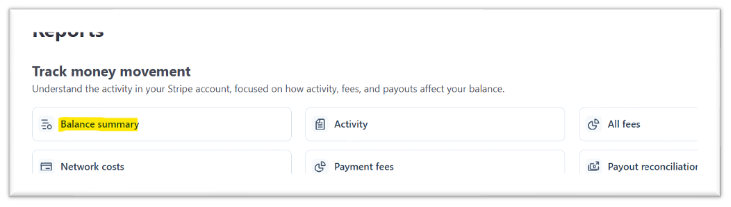
From the Reports dashboard, click Balance summary.
-
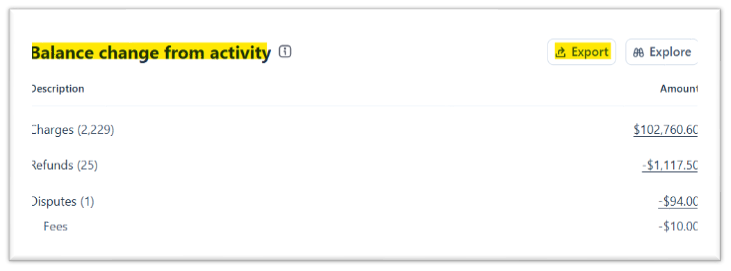
Set the date range and time zone to UTC, then click Export on the Balance change from activity panel.
-
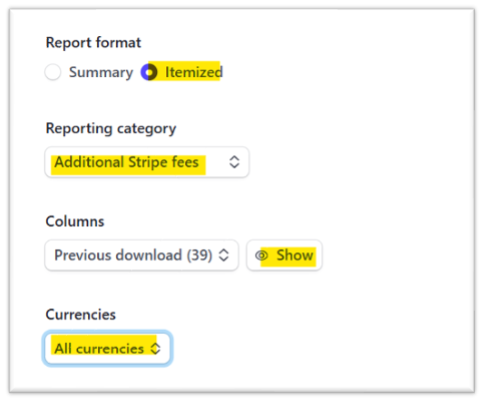
Set Report format to Itemized, Reporting category to Additional Stripe Fees, and Currencies to All currencies. Then click Show next to Columns.
-
Select these fields to download:
-
Balance transaction – select all
-
Payout – deselect all
-
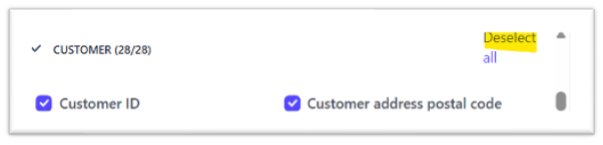
Customer – deselect all
-
Payment – select all
-
Metadata – deselect all
-
Connect – deselect all
-
Currency – all
-
Click Download report.
Itemized Balance Change from Activity Full Report
Path: Reports → Balance summary → Balance change from activity → set the date range and time zone to UTC → Export → Itemized → select fields
-
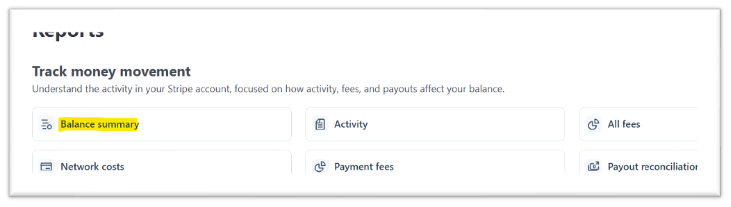
From the Reports dashboard, click Balance summary.
-
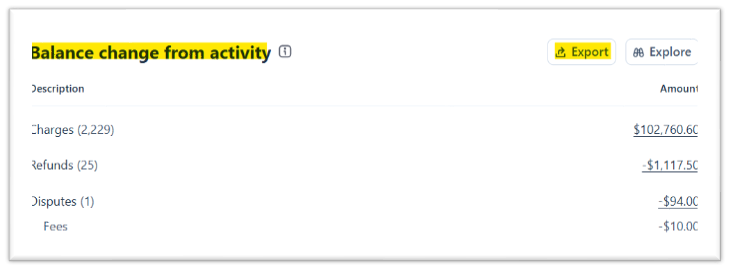
Set the date range and time zone to UTC, then click Export on the Balance change from activity panel.
-
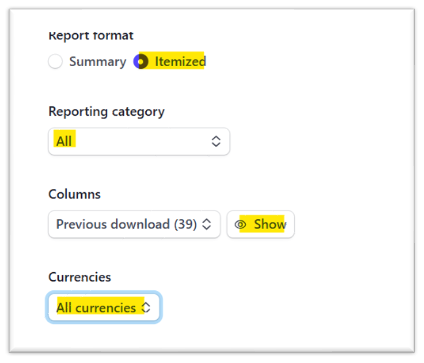
Set Report format to Itemized, Reporting category to All, and Currencies to All currencies. Then click Show next to Columns.
-
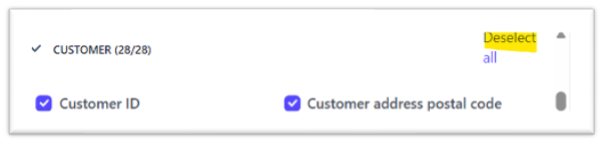
Select these fields to download:
Balance transaction – select all
-
Payout – deselect all
-
Customer – deselect all
-
Payment – select all
-
Metadata – deselect all
-
Connect – deselect all
-
Currency – all
-
Click Download report.
Network Cost & Fee Report
Path: Reports → Network costs → Export
-
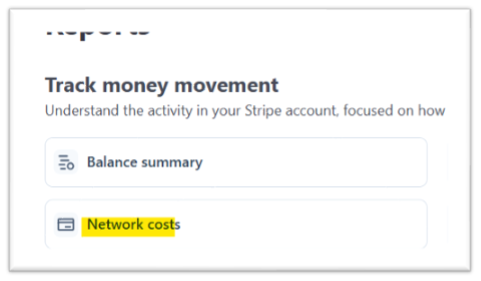
From the Reports dashboard, click the “Network costs” tile.
-
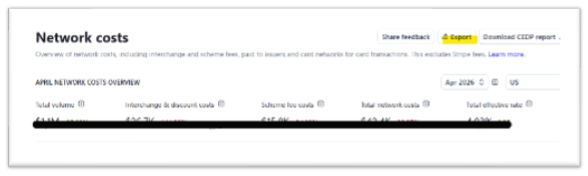
On the Network costs overview, click Export.
-
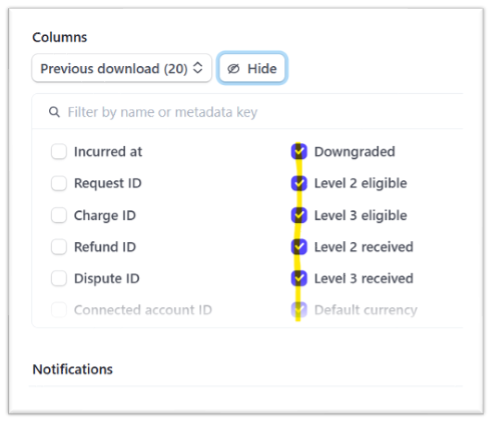
Under Show columns, select all except:
-
Incurred at
-
Request ID
-
Charge ID
-
Refund ID
-
Dispute ID
-
Connect Account ID
-
Click Download report.
Transaction Level Fee Report
Path: Reports → Payment fees → Transaction-level report
-
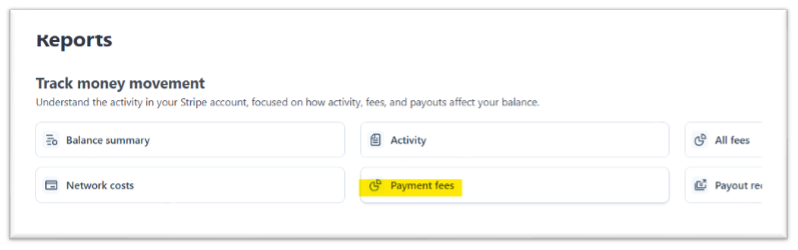
From the Reports dashboard, click the “Payment fees” tile.
-
Find Transaction-level report in the list. This report shows a complete itemization of each fee associated with each transaction — useful for custom analysis or matching to your internal data sources.

-
Click Download next to Transaction-level report.
Interchange Plan Level Fee Report
Path: Reports → Payment fees → Interchange plan-level report
-
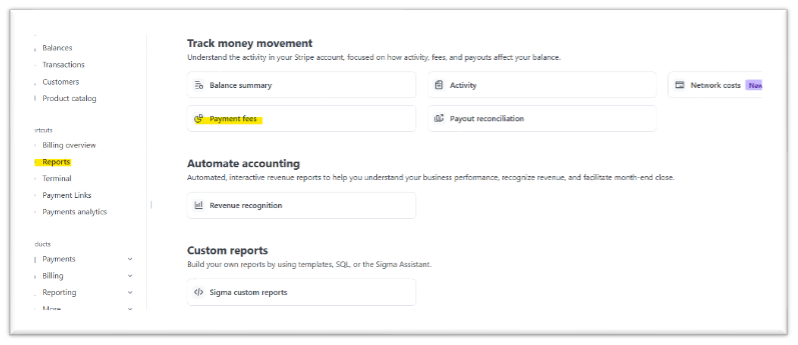
From the Reports dashboard, click the “Payment fees” tile.
-
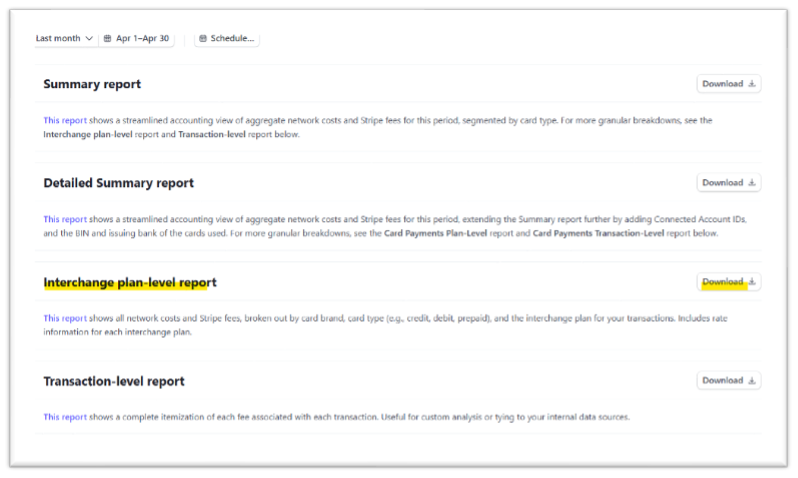
Find Interchange plan-level report in the list. This report shows all network costs and Stripe fees broken out by card brand, card type (credit, debit, prepaid), and interchange plan, including rate information for each plan.
-
Click Download next to Interchange plan-level report, and select all fields.
Authorization Detail
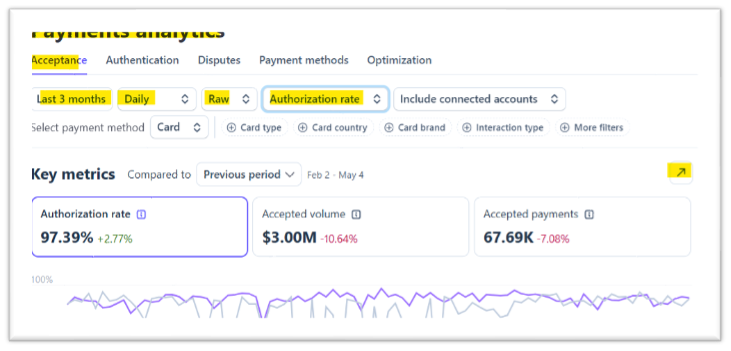
This report shows raw data, including all attempted card payments.
Path: Reports → Payments analytics → Acceptance analytics
-
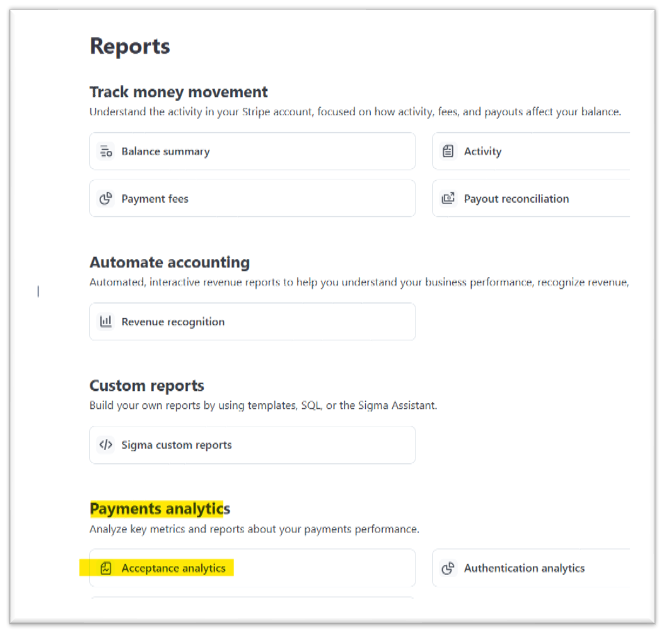
From the Reports dashboard, click “Acceptance analytics” under Payments analytics.
-
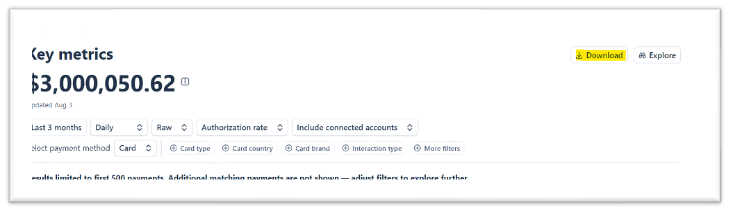
Fill in these fields as pictured: date range, Daily, Raw, and Authorization rate.
-
Click Download on the Key metrics panel, and select all fields.