
Not all reports listed below are required for every engagement; please confirm with your Optimized Payments Account Manager which reports you should download.
Jump to Report
Funding Adjustment Report Summary
Funding Adjustment Report Summary (not transaction level)
An aggregated analysis of funding transactions, including trends by merchant, region, and time period.
Path: Main Menu → View → Funding → Generic Analysis → set date range and groups → Generate → Download
-
Log into your Fiserv portal.
-
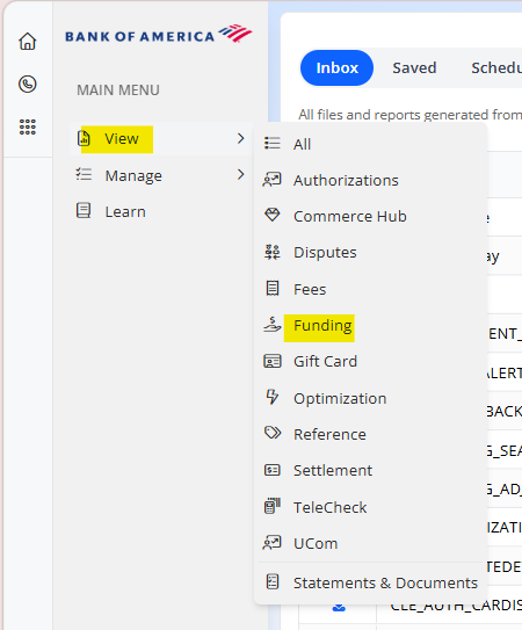
Under Main Menu, select View → Funding.
-
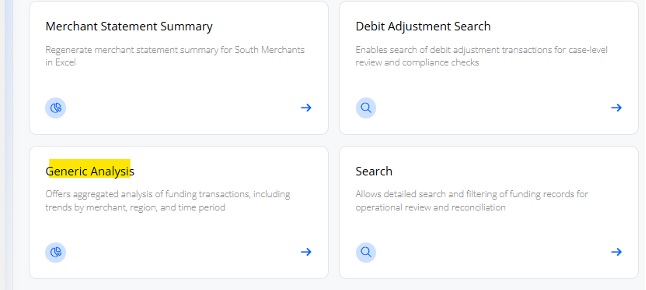
Scroll down and select Generic Analysis.
-
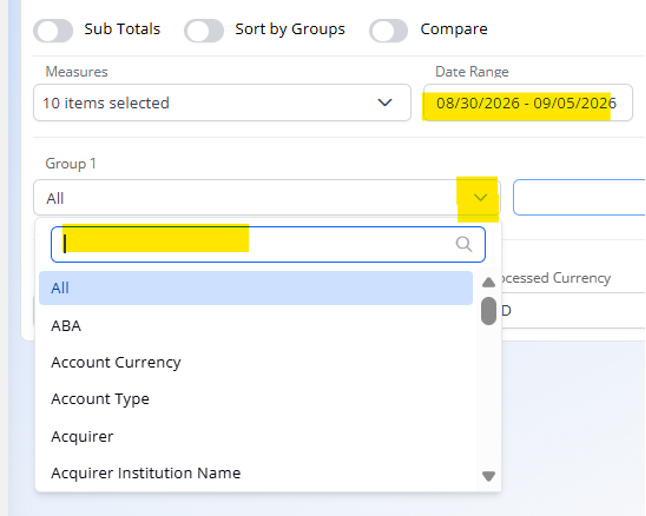
Enter the date range, then click the Group 1 dropdown to begin selecting groups.
-
Add these fields to groups:
-
Major Category
-
Minor Category
-
Transaction Category
-
TXN Month

-
Click Generate report.
-
After the report is generated, click Download.
-
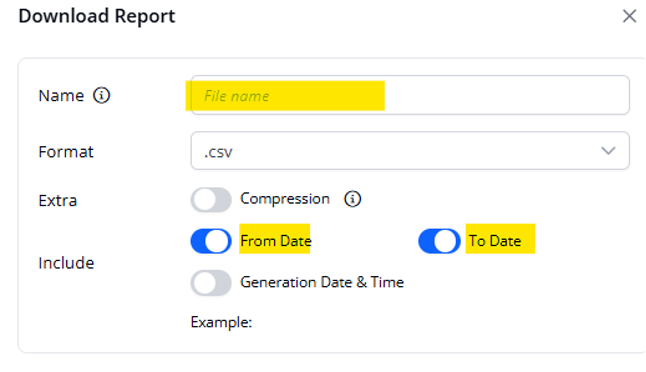
Enter a file name, then turn on From Date and To Date under Include.
-
If you expect the file to be large, turn on Compression.
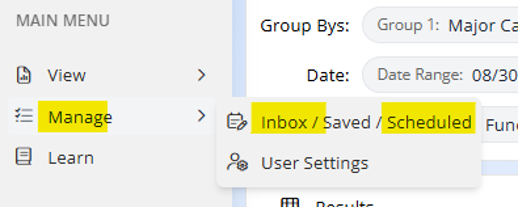
10. If the file does not download immediately, go to Main Menu → Manage → Inbox / Saved / Scheduled.
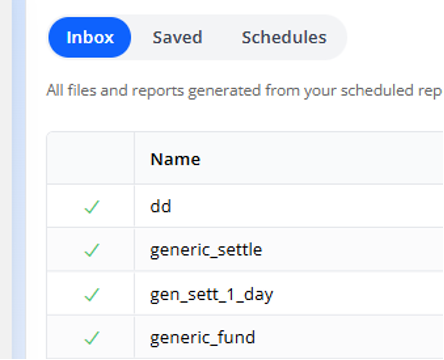
11. Once the report is complete, it will appear in your Inbox where you can download it.
Settlement Report Summary
An aggregated analysis of settlement transactions across merchants, card types, and time periods for trend monitoring.
Path: Main Menu → View → Settlement → Generic Analysis → set date range and measures → add groups → Generate → Download
-
Log into your Fiserv portal.
-
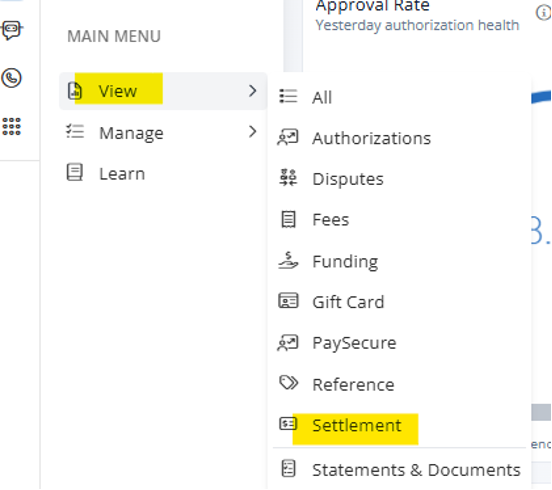
Under Main Menu, select View → Settlement.
-
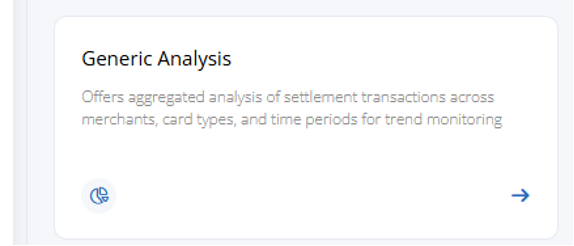
Select Generic Analysis.
-
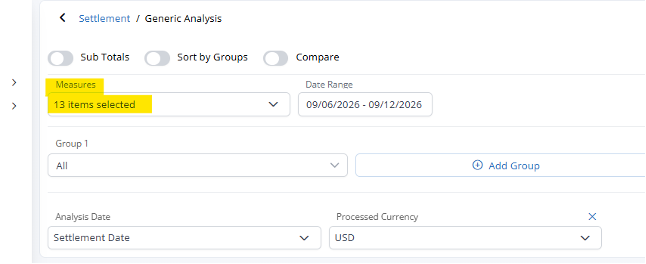
Enter the date range, then click the Measures dropdown.
-
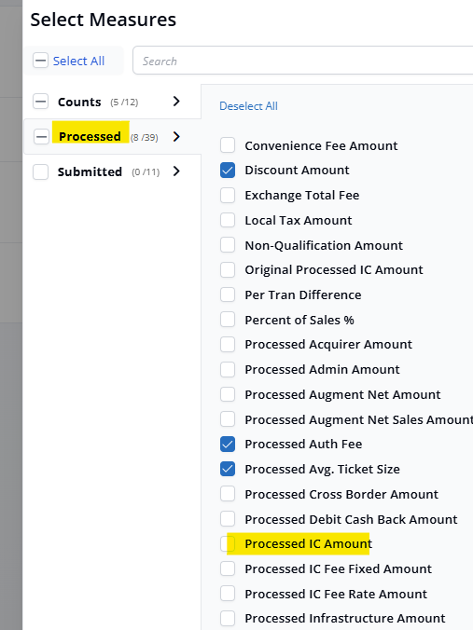
Leave all defaults selected. Under Processed, also select Processed IC Amount.
-
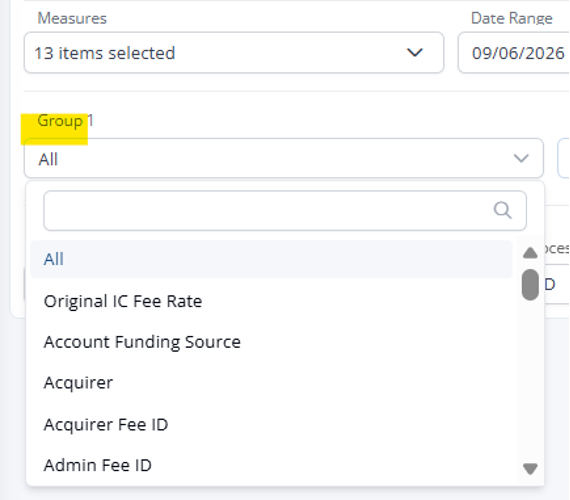
Click the Group 1 dropdown to begin adding groups.
-
Add these fields to groups:
-
TXN Month
-
Transaction Type
-
Merchant Category
-
Original Plan Code Description
-
Network
-
Card Brand
-
Card Class
-
Card Issue Type
-
Card Issuer Regulated
-
Card Issuing Country
-
IC Fee Rate
-
Per Transaction Fee

-
Leave Analysis Date set to Settlement Date and Processed Currency set to USD.
-
Click Generate report.
10. After the report is generated, click Download.
11. Enter a file name, then turn on From Date and To Date under Include.
12. If you expect the file to be large, turn on Compression.
13. If the file does not download immediately, go to Main Menu → Manage → Inbox / Saved / Scheduled. Once the report is complete, it will appear in your Inbox where you can download it.