
Required Information
-
Adyen relationship manager's contact
-
Access for Optimized Payments to your Adyen Partner Portal account
-
Report service user API key (username and Basic Auth password)
-
Web service user API key
-
Confirmation that the company-level report webhook is enabled
Supported Reports
-
Dispute Transaction Details
-
Received Payment Details
-
Settlement Details
-
External Settlement Details
-
Interchange and Scheme fee
-
Payments Accounting
-
Monthly invoice
Step 1 - Join the Optimized Payments Partner Portal
To give Optimized Payments access to your Adyen account, you need to join our Partner Portal. Initiate the access by following the steps below.
-
Log in to your Adyen account.
-
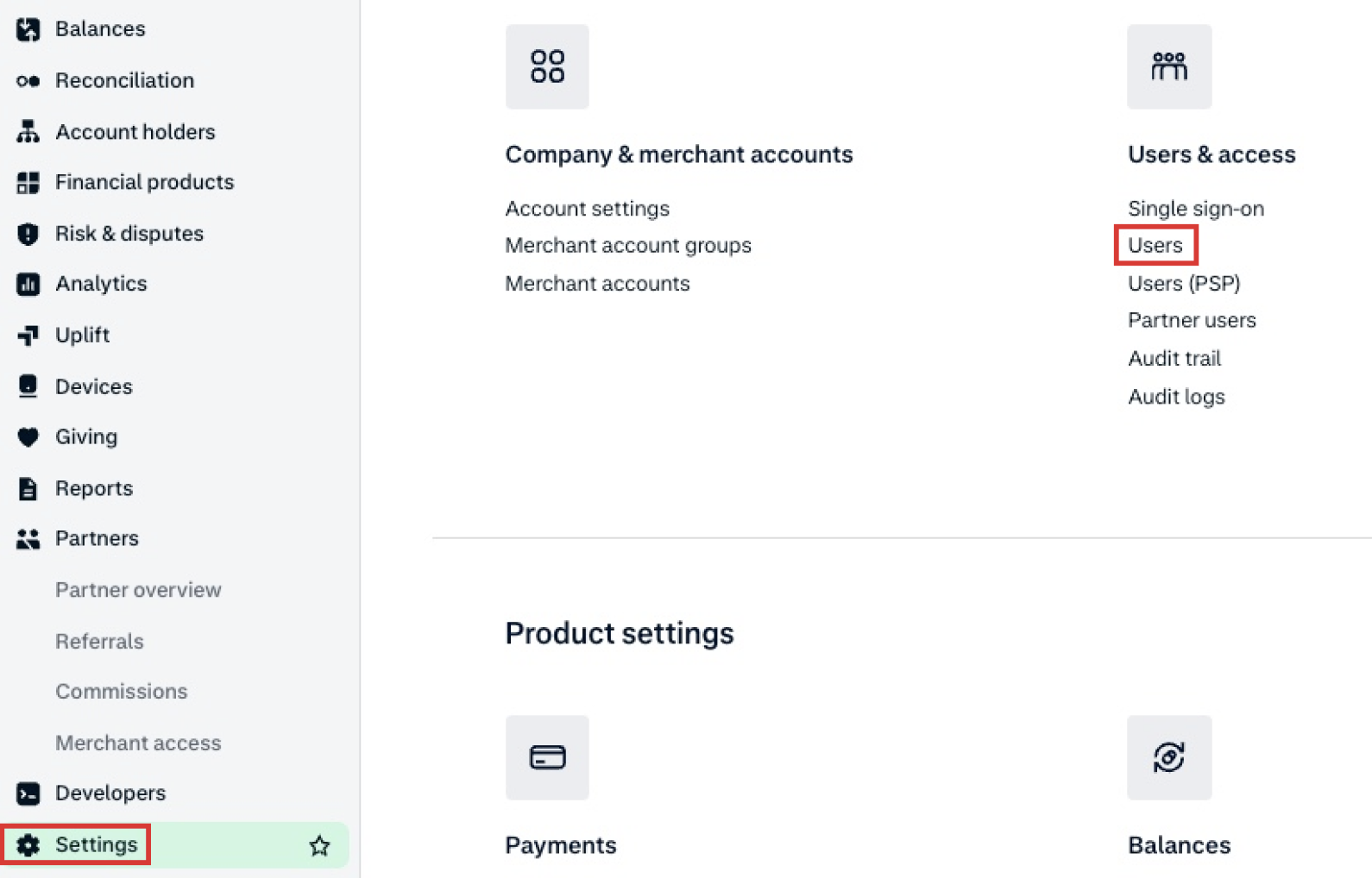
On the left menu, select Settings then click Users.
-
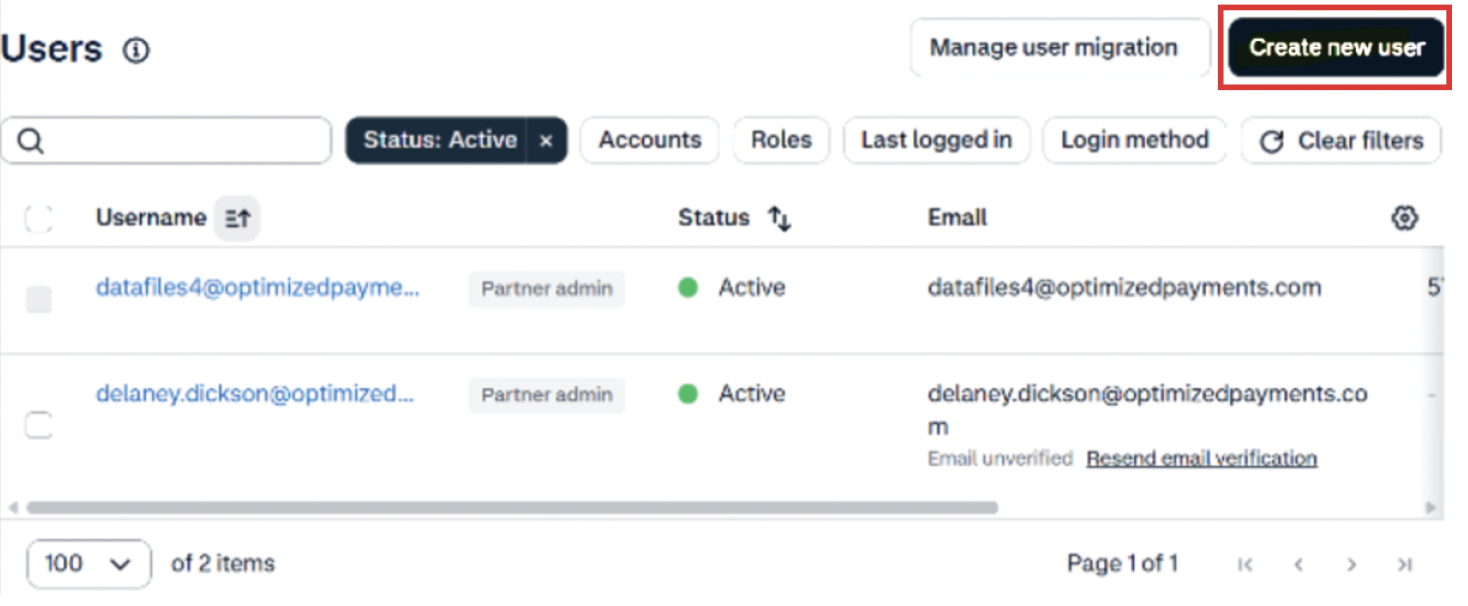
Click Create new user.
-
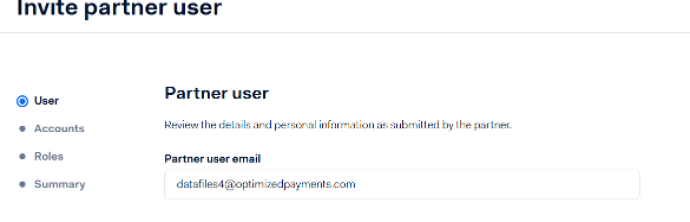
Enter [email protected] as the user.
-
Select the following roles, then submit the invitation:
-
General - merchant standard
-
POS - merchant POS terminal view
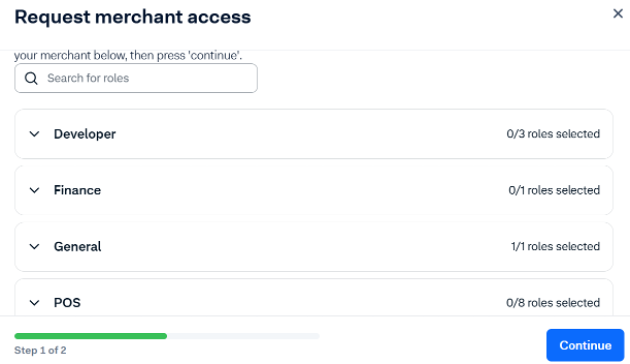
Once submitted, Optimized Payments will be notified that you've joined. After we accept the invitation, we'll ask you to add the additional permissions in Step 2.
Step 2 - Assign additional permissions
Once Optimized Payments acknowledges your account activation, assign the additional permissions below.
-
Under Settings, select Users.
-
Select the Optimized Payments user account.
-
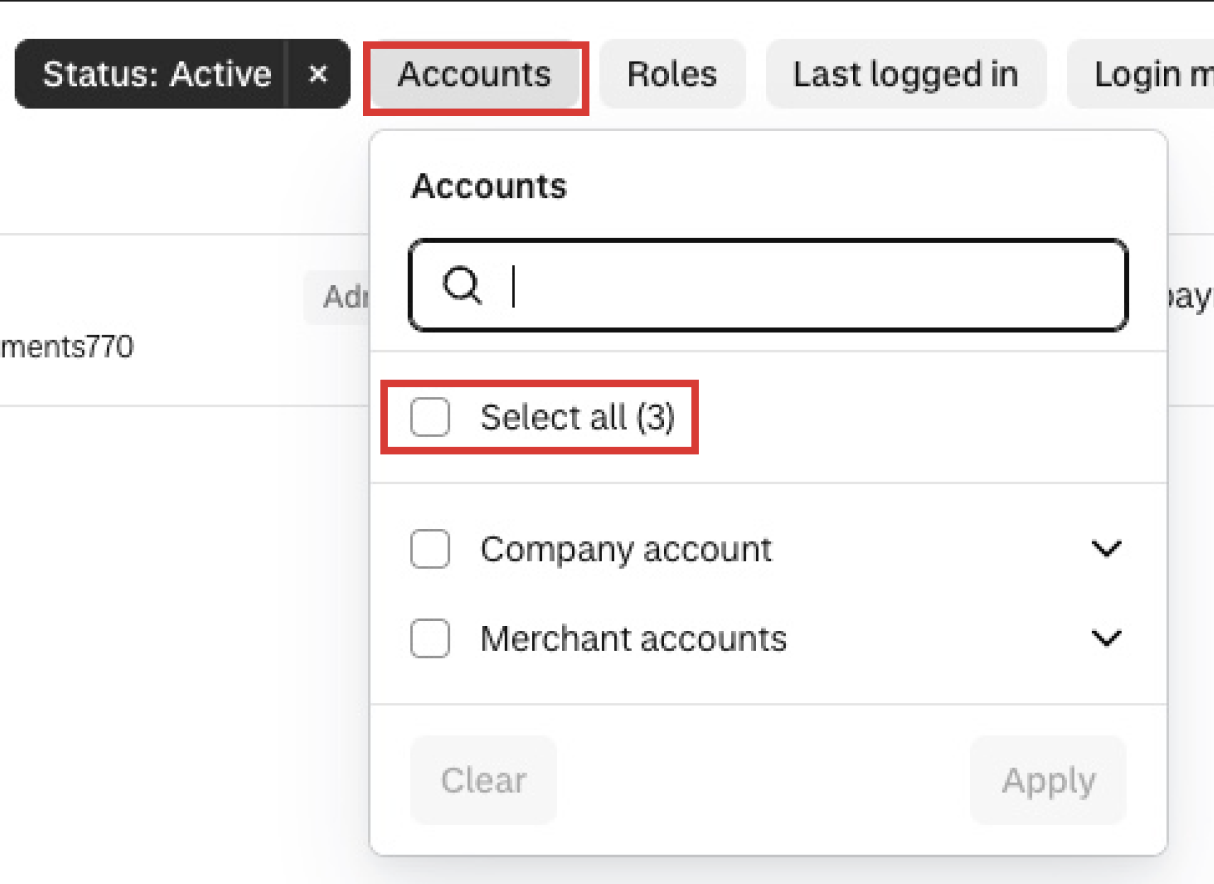
Under Accounts, select all accounts, then assign these roles and permissions.
|
Role |
Permission |
What it allows |
|
Account |
Manage account support tickets |
The user can view and manage all support tickets created from the accounts they have access to. |
|
Developer |
Manage API credentials |
The user has full API credential management permissions, including generating an API key. |
|
Developer |
Merchant technical integrator |
The user can manage webhooks and API URLs. |
|
Finance |
Manage received invoices (Debtor) |
The user can view invoices submitted by the Adyen payments platform. |
|
Finance |
Merchant financial |
The user can view all payment, payout, and Revenue Accelerate information, including the Adyen deposit. The user can also view and subscribe to generic reports and the conversion, external settlement, and 3D Secure conversion reports. Combined with the Merchant admin role, this also grants permission to manage the Reserve. |
|
Finance |
See external settlement reports |
The user can view the external settlement detail report. |
|
General |
Download reports |
The user can download all reports. |
|
General |
Generate reports |
The user can download and generate all reports. |
|
General |
Merchant report |
The user can download, generate, and subscribe to all reports. The user can also view the payment lifecycle dashboard. |
|
In-person payments (POS) |
Merchant POS standard role |
The user can view terminal data and configurations, product offerings and pricing, store lists and store IDs, and terminal orders, and can view and download fleet reports. |
|
Risk |
Merchant view risk settings |
The user can view risk configurations and block and trust lists. |
|
Risk |
View risk reports |
The user can download and subscribe to risk reports. |
|
Transactions |
Merchant view payouts |
The user can view open and processed payouts in the Customer Area. |
|
Transactions |
View payments |
The user can look up payments and offers, and access the payment search pages. This role is enabled by default for all users. |
|
Transactions |
Export payments |
The user can download the full payments list as a CSV file. |
|
Classic platforms |
Merchant MarketPlace role |
The user can view the Sub-merchants page, including KYC status, payout methods, payout history, and transactions of account holders. If Adyen Score is enabled, the user can also view the Case management and Risk signals pages. |
Your available permissions may vary slightly. Contact your Optimized Payments Client Success Specialist if you need assistance.
Step 3 - Enable company-level reporting
Optimized Payments requires a company-level webhook to receive your report notifications, yours may not be turned on yet.
By default Adyen does not populate the ICSF field, you will need to ask your RM to populate it.
Send your Adyen relationship manager the following request:
Hello [Name],

We recently partnered with Optimized Payments to support our payments analytics and need you to make some updates on our account.

If the sendReportNotificationForCompany setting is not enabled, please enable it so we can receive company level reports.

In addition, populate the ICSF field in the Payments Accounting report.

Please confirm once these updates are complete.

Best Regards,
[Your Name]
Confirm with your internal team which reports you currently use and whether they're configured at the company or merchant level. Because of Adyen reporting limitations, any changes made to reports in the Optimized Payments account will also be reflected in your existing reports, so company-level and merchant-level reports should be treated as distinct. Report scheduling will be handled by your Optimized Payments Client Success Specialist.
Step 4 - Generate a report service user API key
-
Your client success manager can do this for you or you can manage it yourself.
-
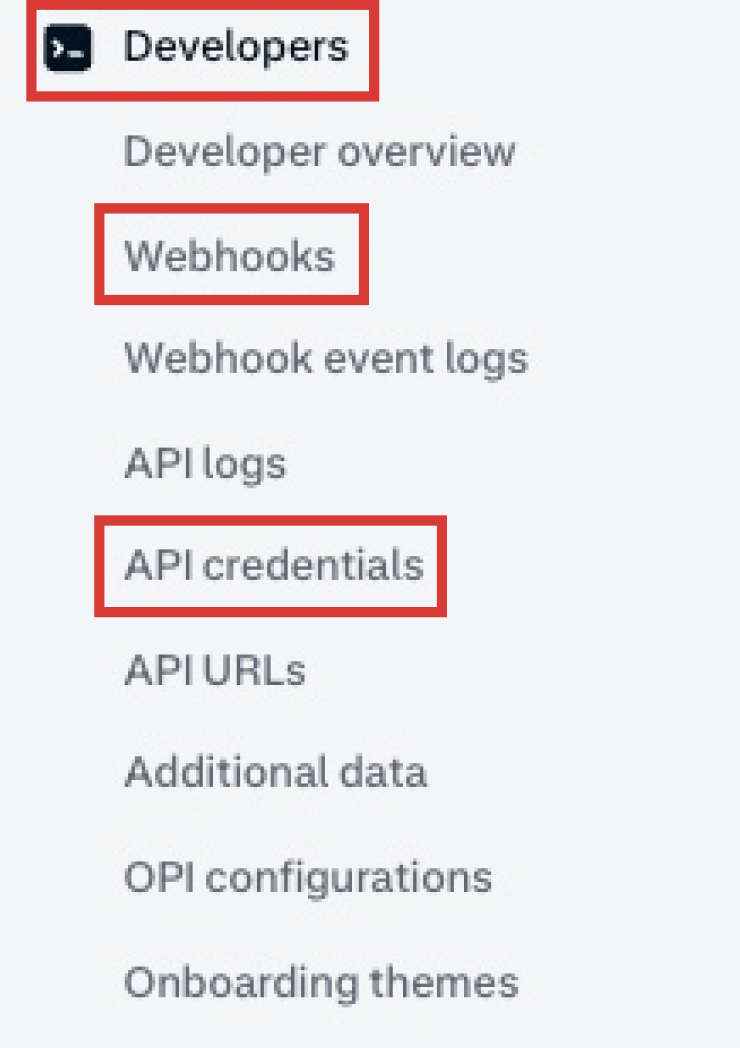
In your Adyen account, go to Developers > API credentials.
-
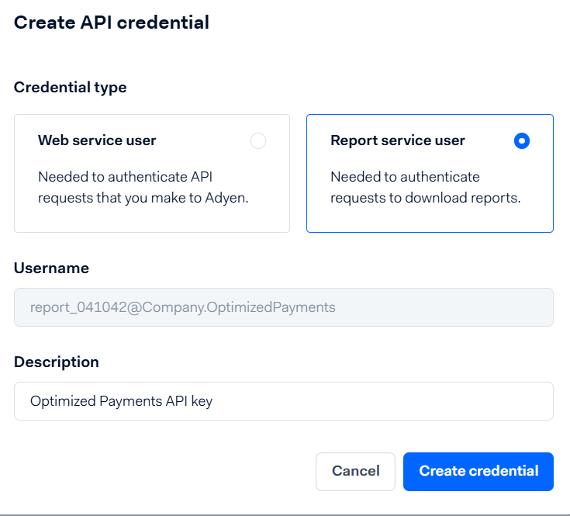
Click Create new credential, then select Report service user.
-
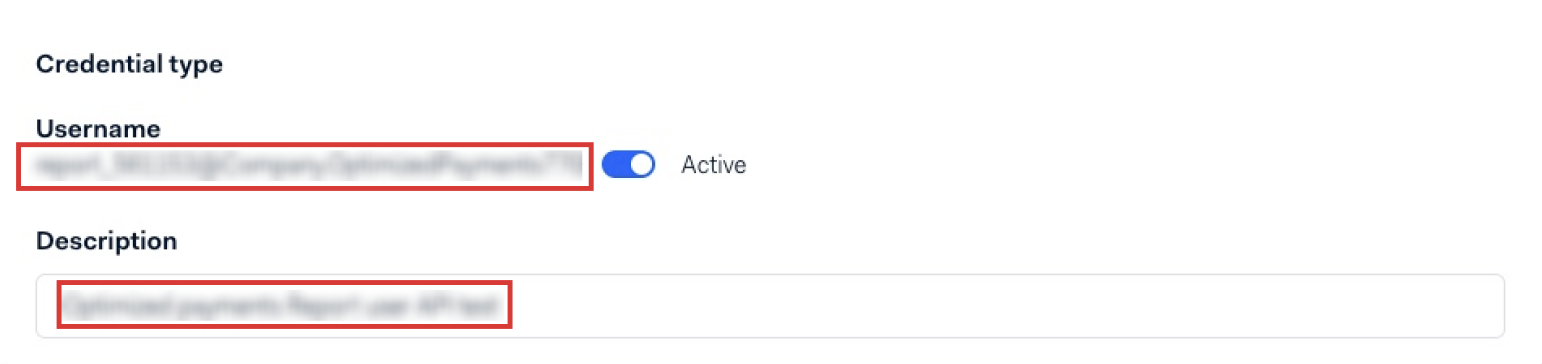
Provide the username to Optimized Payments.
-
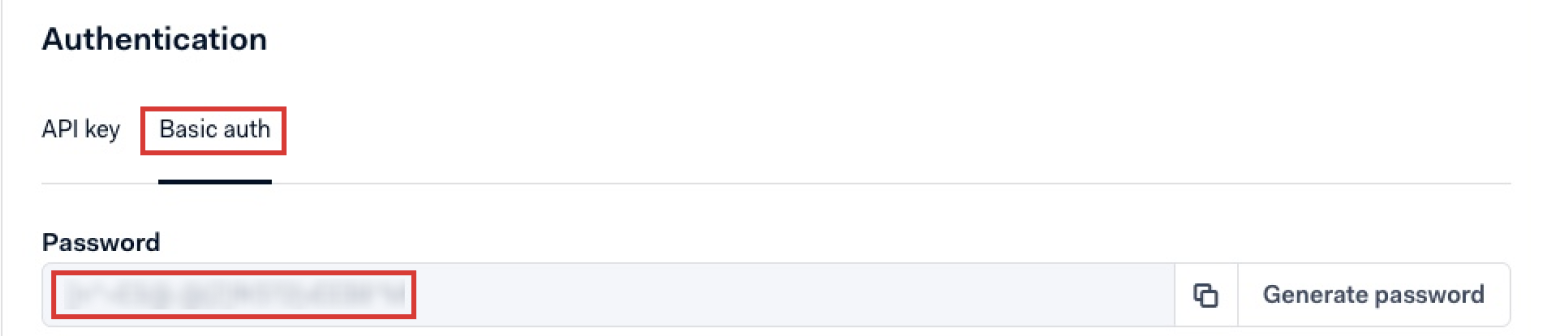
Select the Basic auth tab and generate a password.
-
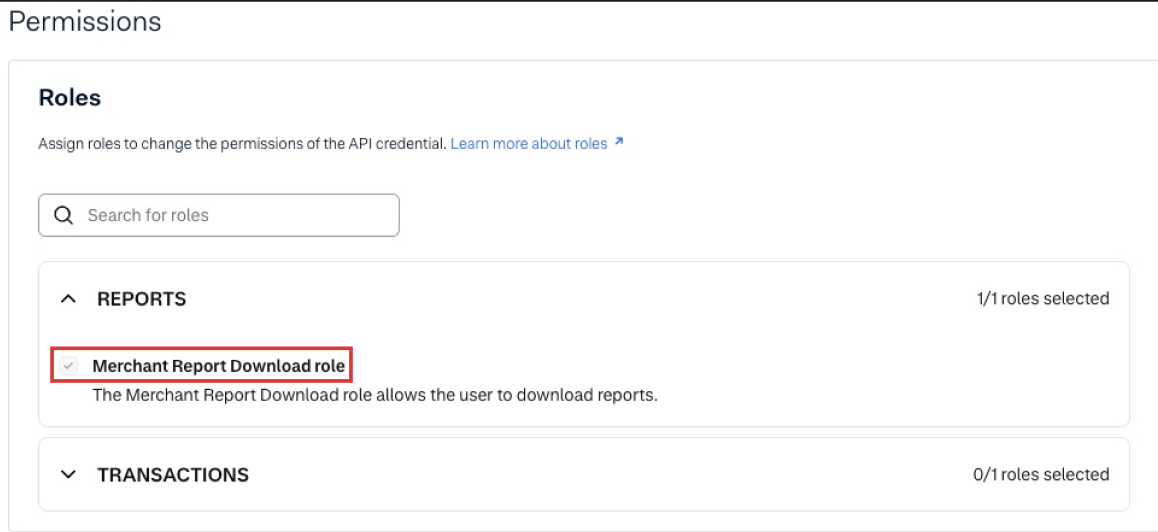
Scroll down and assign Merchant Download Reports role.
-
Note the Username and Password to share with Optimized Payments later.
-
Save changes
Step 5 - Generate a web service user API key
-
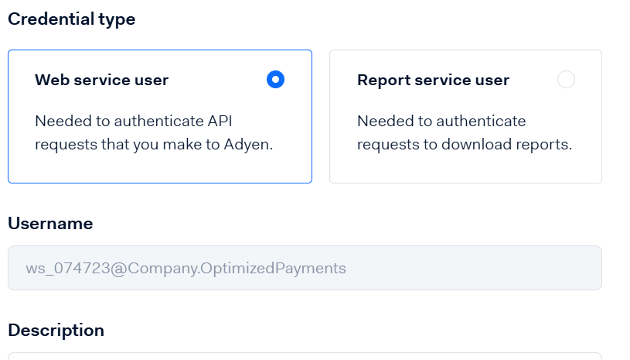
Go back to top of page, then select Web service user.
-
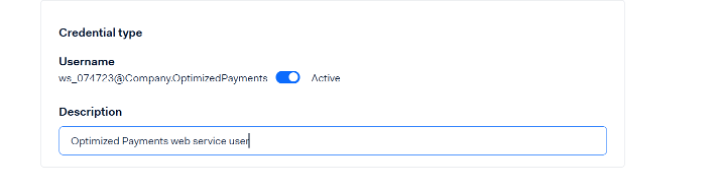
Add a description that includes "Optimized Payments."
-
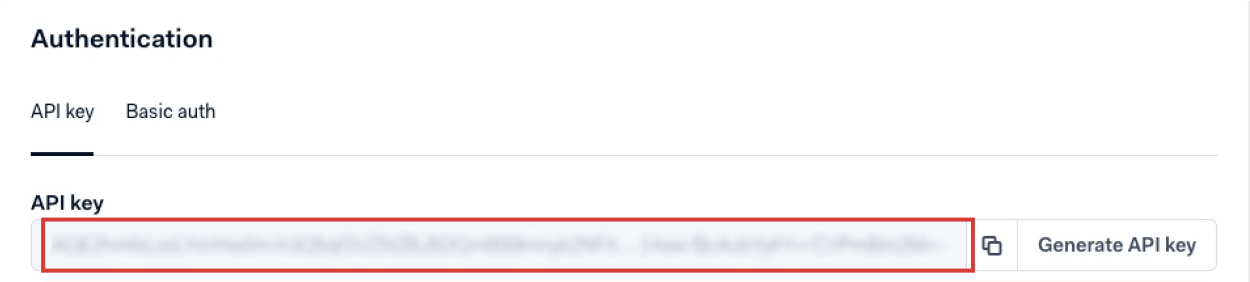
Select the API key tab and generate the key.
-
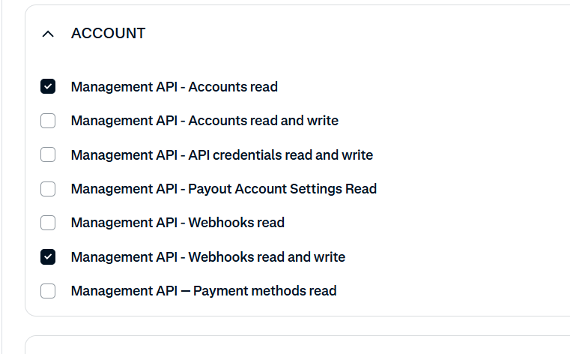
Before saving, limit the permissions to the following:
-
Management API - Accounts read
-
Management API - Webhooks read and write
-
Remove all other permissions as well as roles under POS and Uncategorized
-
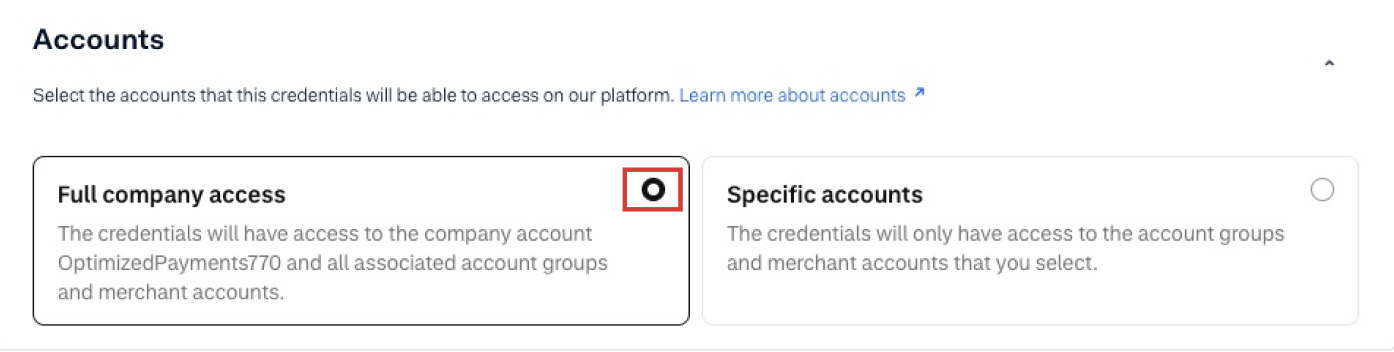
Under Accounts, select Company account and all associated merchant accounts.
-
Save the key.
Step 6 - Send your credentials to Optimized Payments
Securely send the following to your Optimized Payments Client Success Specialist at [email protected]:
-
Client name as it appears on the Adyen portal
-
Username from the report service user key
-
Basic auth password from the report service user key
-
API key from the web service user key
Additional Note
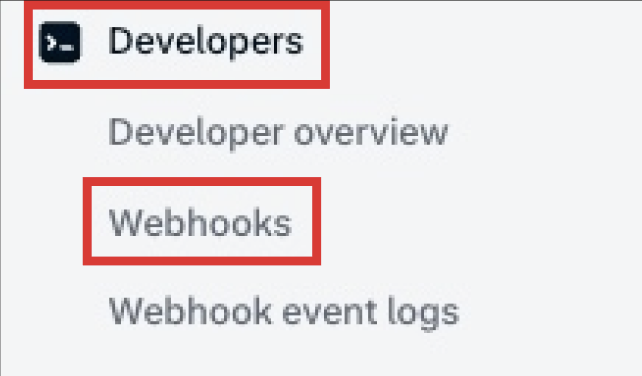
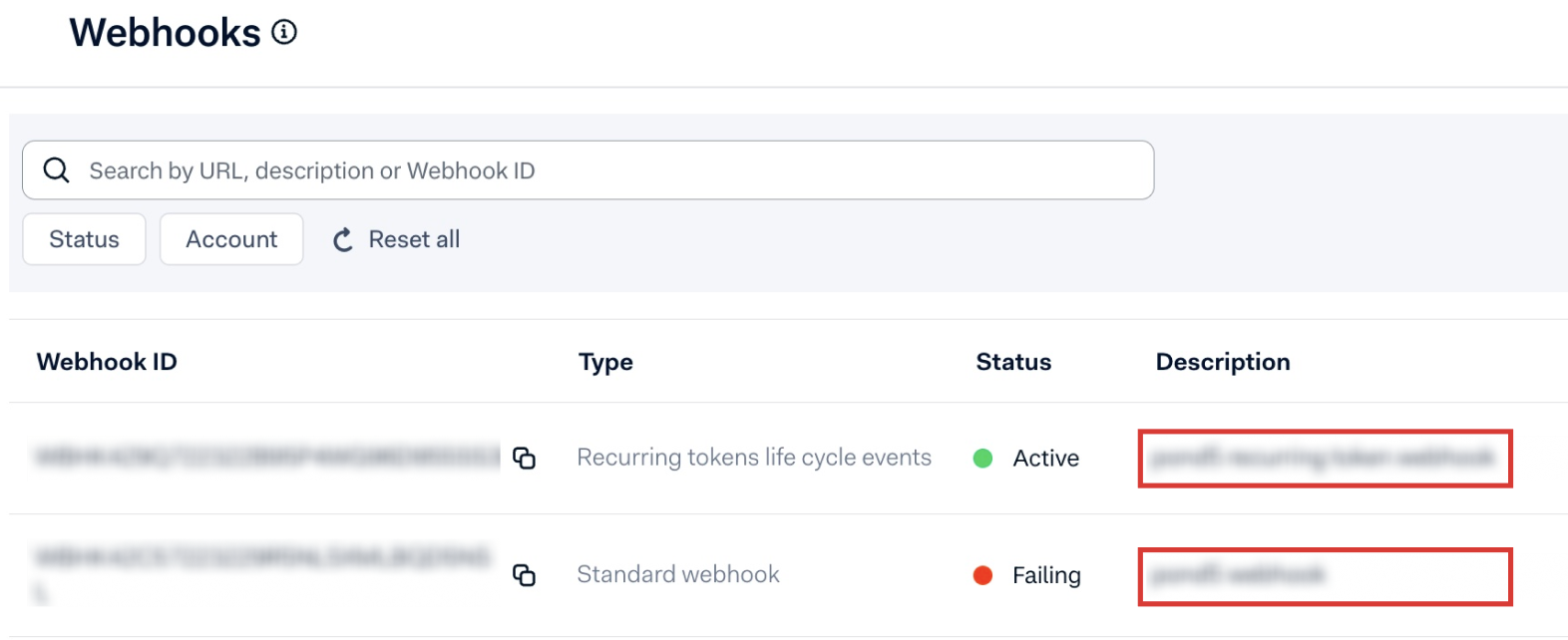
Once Optimized Payments adds your credentials to our system, a webhook is created automatically on your account. You can view it under Developers > Webhooks.
Adyen support: support.adyen.com
For your information
-
Report scheduling will be handled by your Optimized Payments Client Success Specialist.
-
Company-level and merchant-level reports are treated as distinct in Adyen. Confirm with your internal team which level your reports use before making changes.
-
Contact your Optimized Payments Client Success Specialist at [email protected] with any questions.