
Required Information
-
Access for Optimized Payments to your Braintree account
-
Contact information for your Braintree RM
Supported API Reports
-
Disputes File
-
Transactions
-
Pass Through Fee Report
-
Disbursement and Fee Report (DFR)
-
Fraud Notifications
Step 1 - Create a role for Optimized Payments in your Braintree account
-
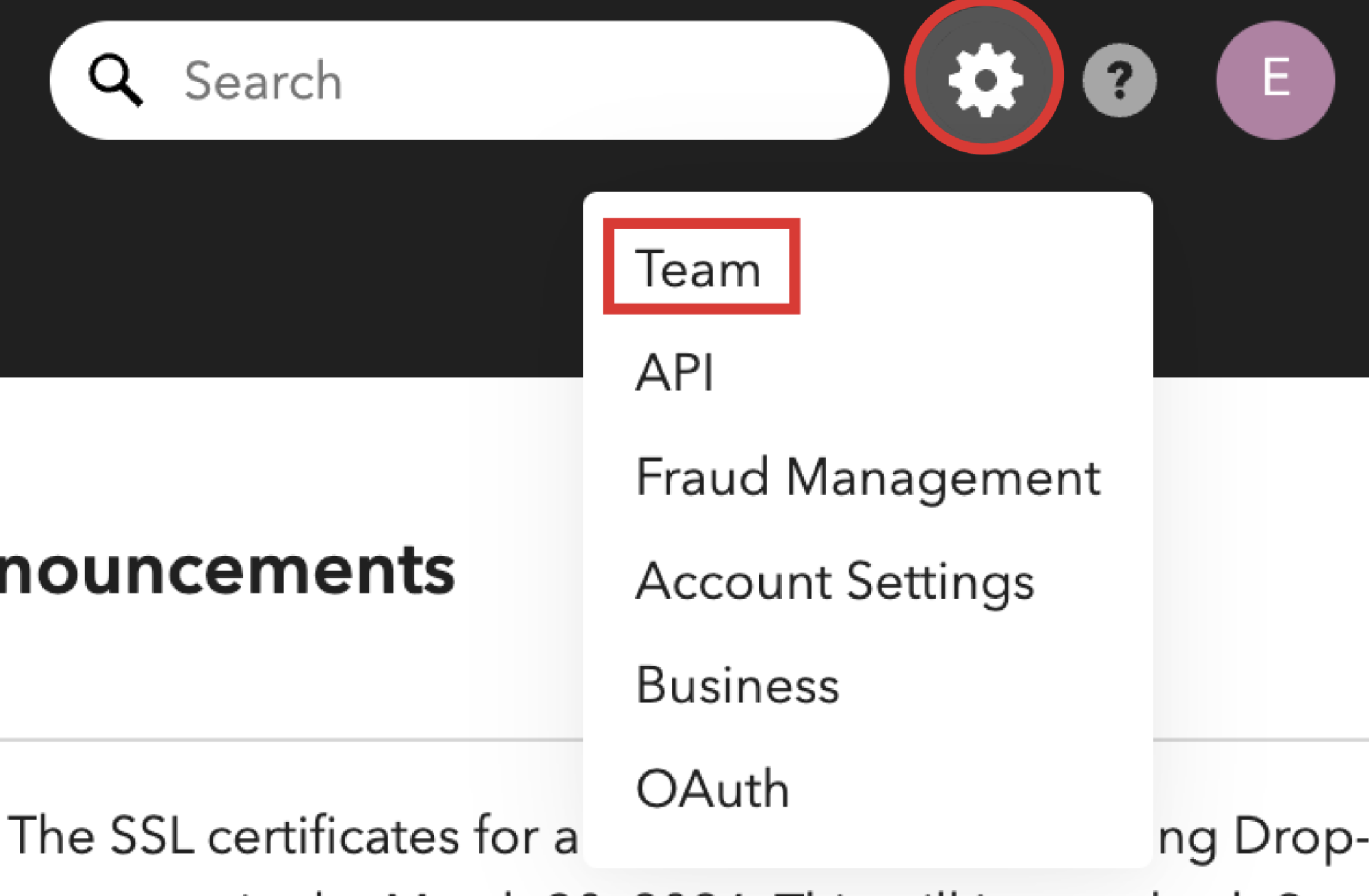
Select the gear icon in the top right corner.
-
Select Team from the drop-down menu.
-
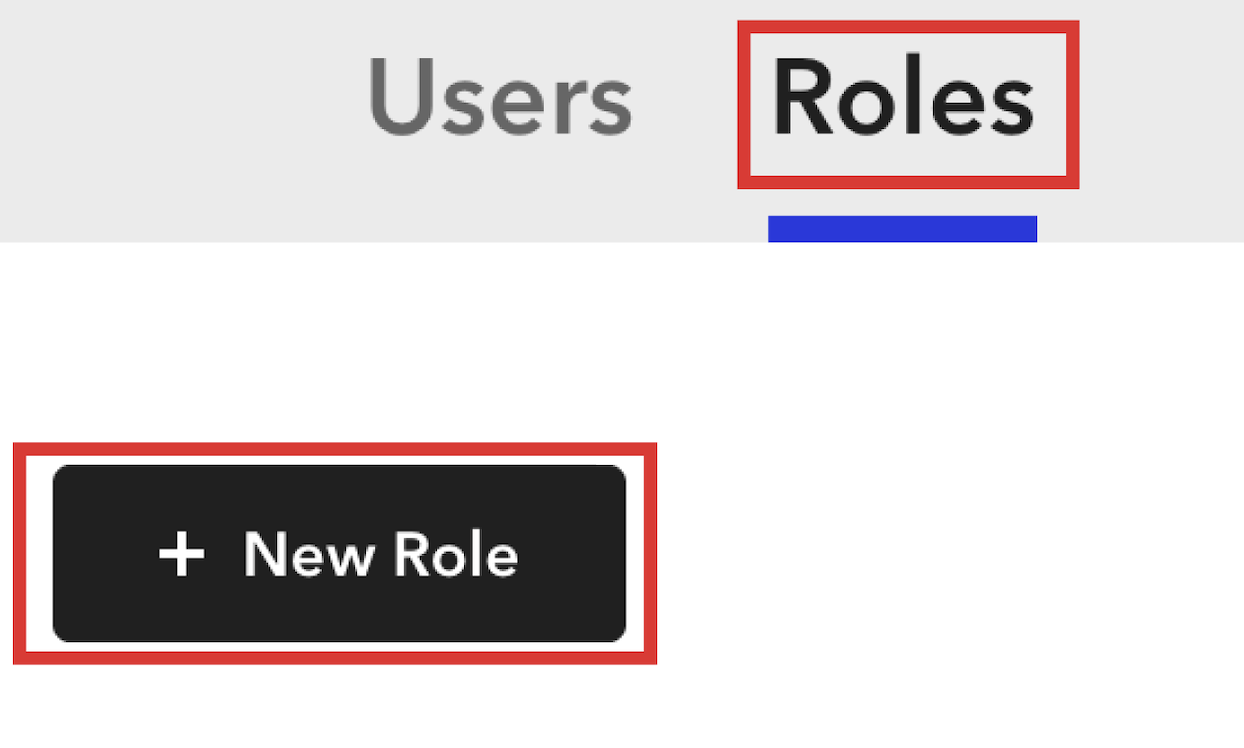
Select the Manage Roles tab to see a list of your existing roles.
-
Select the New Role button to create a new role. Name it something specific to Optimized Payments like Optimized Payments Account.
-
Under Rights Granted for this new role, enable only the following permissions:
-
Transactions
-
Download Transactions with Masked Payment Data
-
-
Customer Management
-
Download Vault Records with Masked Payment Data
-
-
Reporting
-
Create, Run, and Download Reports
-
View Dashboard Graphs
-
-
Fraud Tools
-
View Premium Fraud Management Tools
-
Download Subscription Records
-
-
Recurring Billing
-
View Subscription Plans
-
View Subscriptions
-
Search Subscriptions
-
-
Dispute Management
-
View, manage and contest disputes
-
-
Webhooks
-
Manage Webhooks (Add/Edit/Delete)
-
-
Statements
-
View Statements
-
-
OAuth Applications
-
Manage OAuth Applications (Add/Edit/Disable)
-
-
Read-Only Access
-
View Address
-
View Customers
-
View Merchant Accounts
-
View Payment Methods
-
View Transactions
-
View Verifications
-
Download Files
-
-
Search
-
Search Customers
-
Search Transactions
-
Search Verifications
-
-

-
Click Create Role.
Step 2 - Create Optimized Payments user in your Braintree account
-
Select the gear icon in the top right corner.
-
Select Team from the drop-down menu.
-
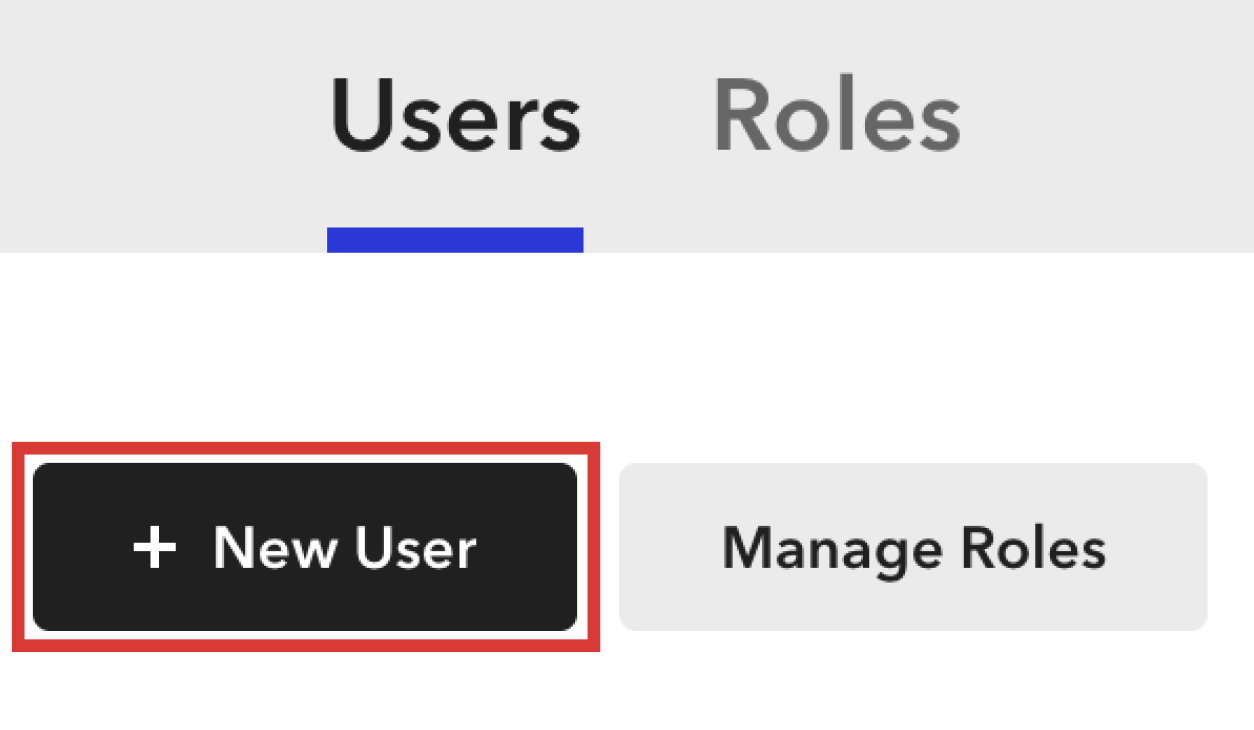
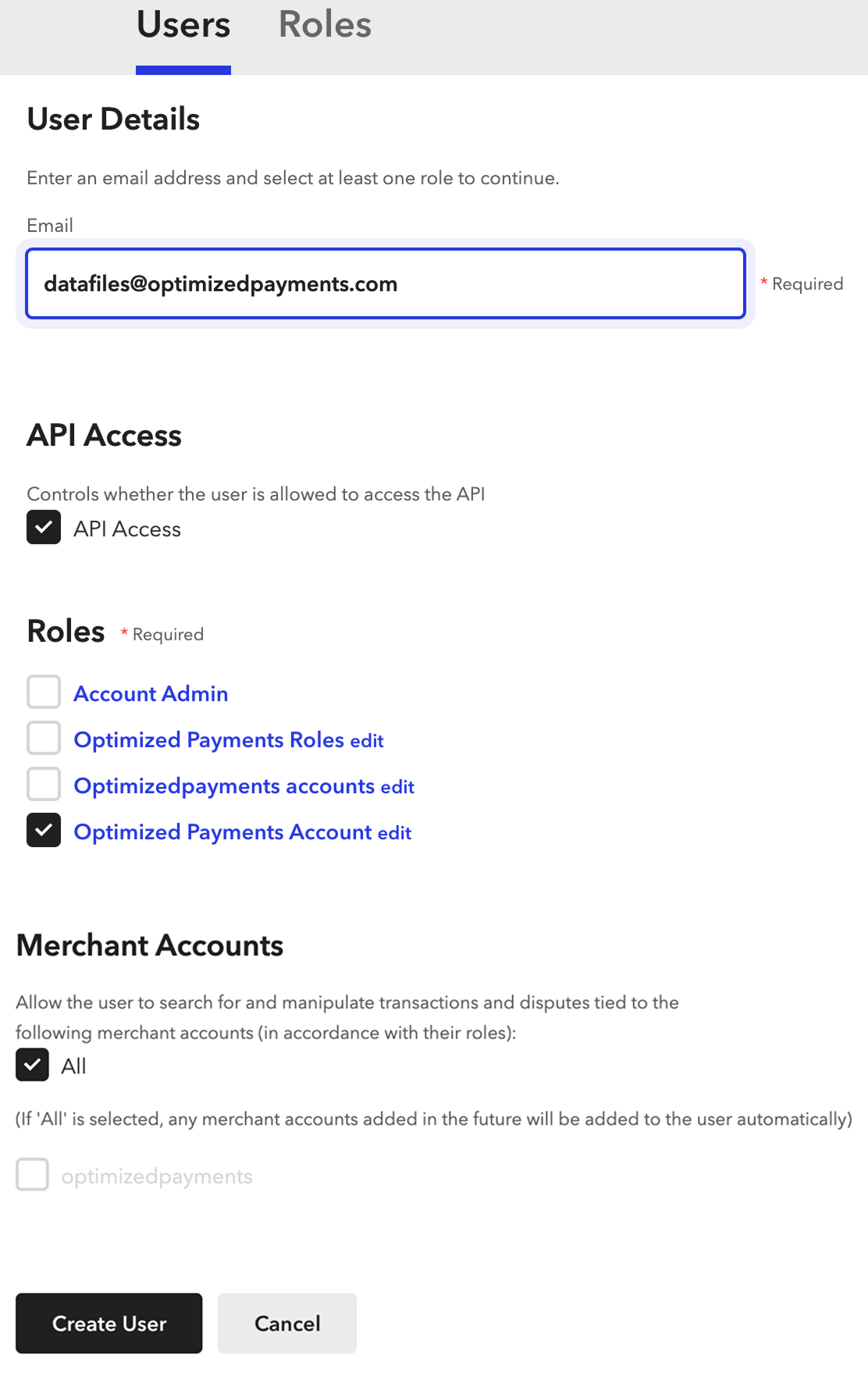
Select the New User button to create a new user. Use the email [email protected].
-
Check the box next to API Access.
-
Under Roles, check the box next to the Optimized Payments Account that you just created.
-
Under Merchant Accounts, check the box for All.
-
Check the option to automatically add new merchant accounts (if available).
-
Click Create User.
Step 3 - Let us know you’ve finished
-
Send an email to your Optimized Payments Client Success Specialist prompting them to activate their account.
-
After we complete our login the status next to the username will change from Pending to Active.
Braintree support: support.braintreepayments.com
For your information
-
Transaction data can be delivered via API or SFTP. If volume exceeds 50,000 transactions per day, SFTP delivery is required.