
Required Information
-
Stripe relationship manager's contact
-
Access for Optimized Payments to your Stripe account
-
Restricted key to set up data connection
Supported API Reports
-
Activity
-
Balance Change from Activity
-
Balance Transactions
-
Card Payment Fees
-
Charges
-
Disputes
-
Refunds
Step 1 - Grant Optimized Payments access to Stripe
-
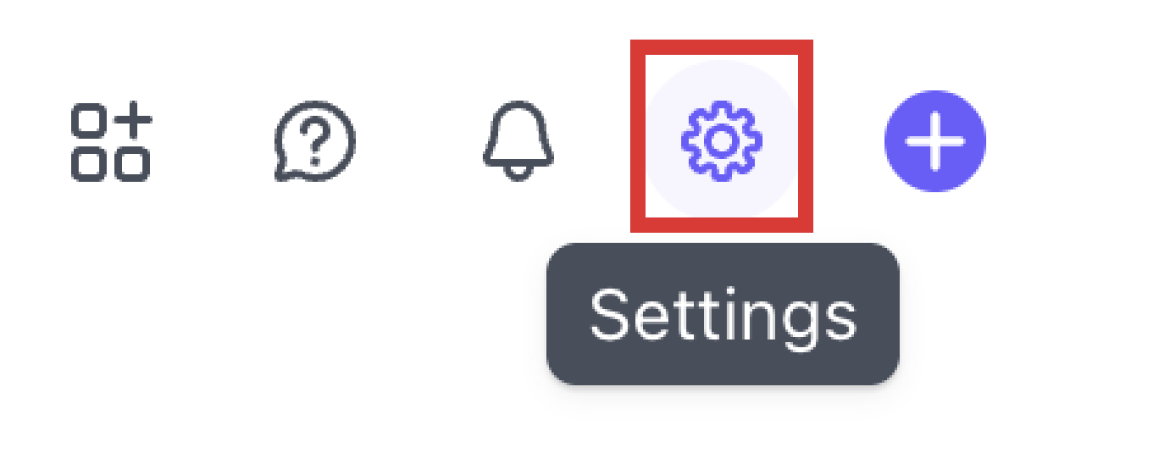
Select the gear icon in the top right corner.
-
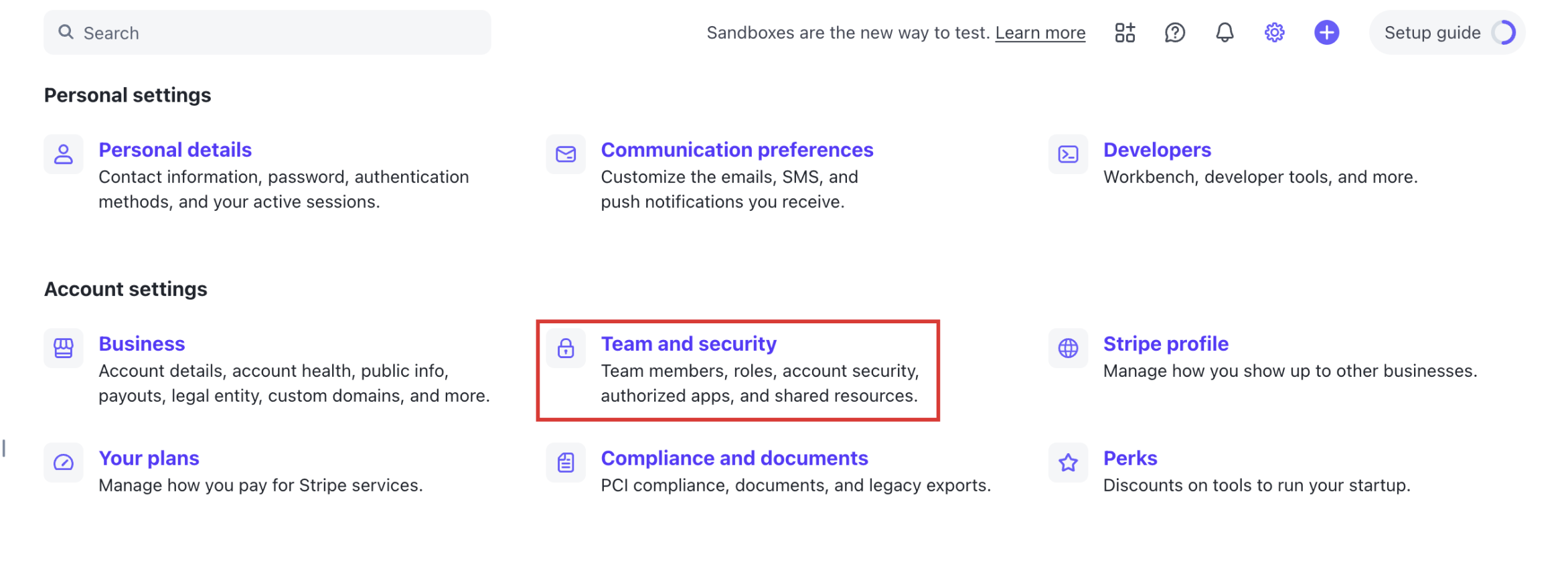
Select Team and security from the options.
-
Click Add Member button.

-
Under email add: [email protected].
-
Below the email field, check the following boxes:
-
Under Payment roles
-
Analyst
-
-
Under View only roles
-
View only
-
-
-
Click Send Invites.
-
Email your Optimized Payments Customer Success Specialist to let them know the role has been created.
Step 2 - Create your restricted API key with your Stripe account
Choose one of the two options below.
Option A - Install Harmonize from the Stripe App Marketplace
-
From your Stripe Dashboard, install Harmonize from the Stripe App Marketplace (search "Harmonize" under Apps in your Dashboard if this link isn't live yet).
-
Follow the link to install the Harmonize App
-
Review and accept the requested permissions when prompted:
-
Read access: Balance, Charges and Refunds, Disputes, Files, Report Runs and Report Types
-
Write access: Webhook Endpoints
-
-
-
After installing, follow the link to “Continue to app settings” to complete setup.
-
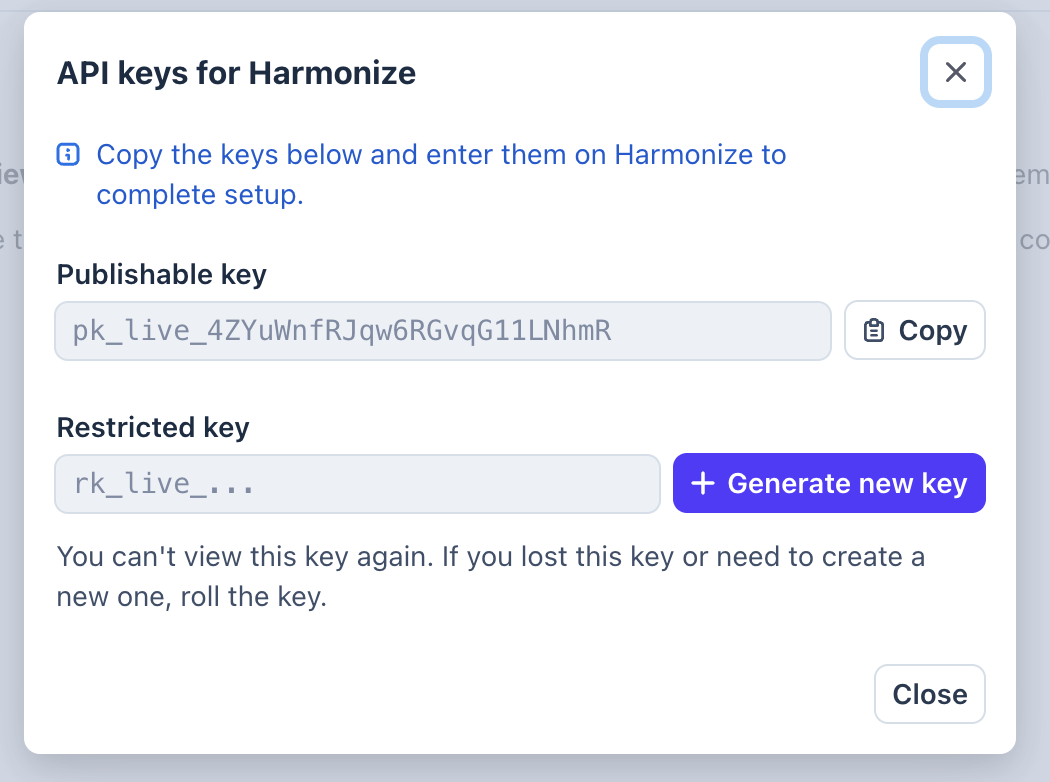
Click +Generate new keys to generate a Restricted API Key, automatically scoped to the permissions above.
-
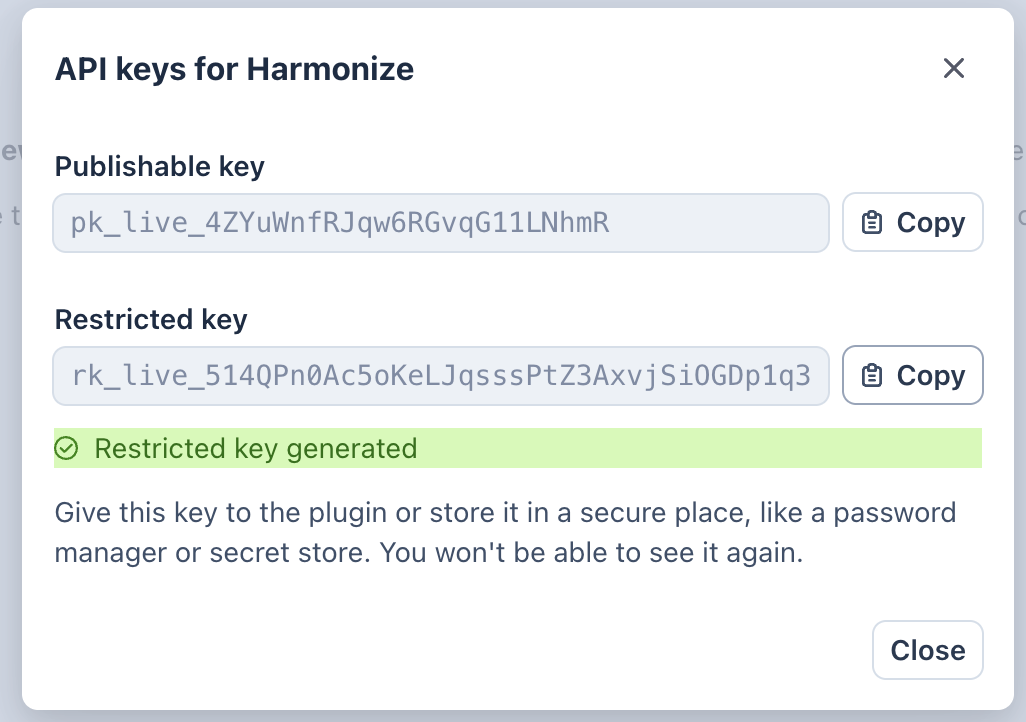
Copy the newly generated Restricted key.
-
Securely send this API key to your Optimized Payments Customer Success Representative.
-
When Optimized Payments adds this API key to their vault it will automatically generate the webhook connection.
Option B - Manually create a restricted key
-
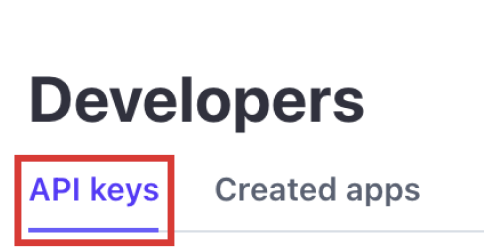
Select the API keys tab.
-
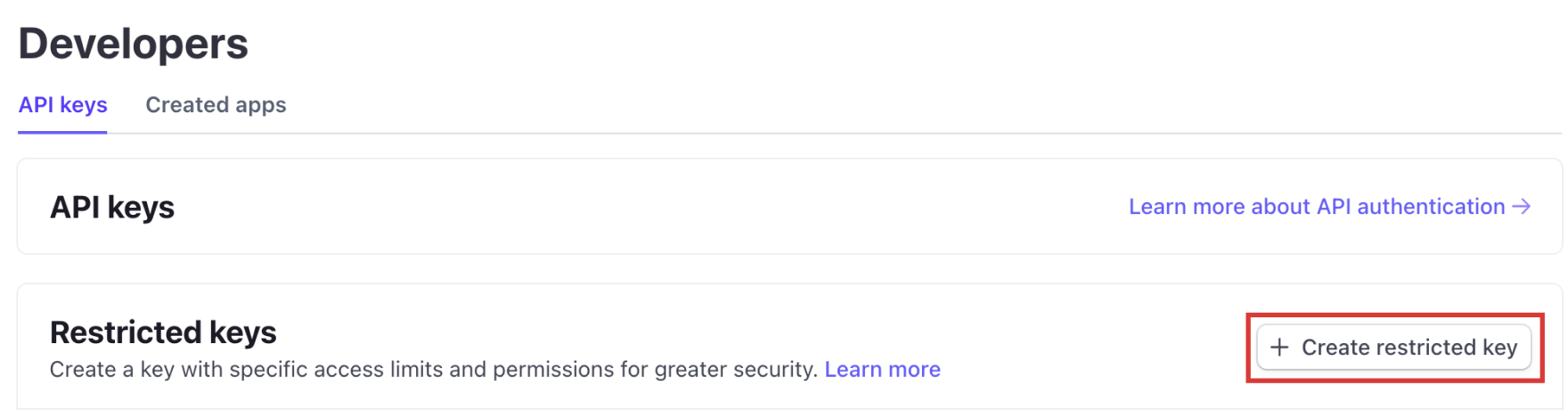
Click Create restricted key.
-
Click Providing this key to another website and click Continue.
-
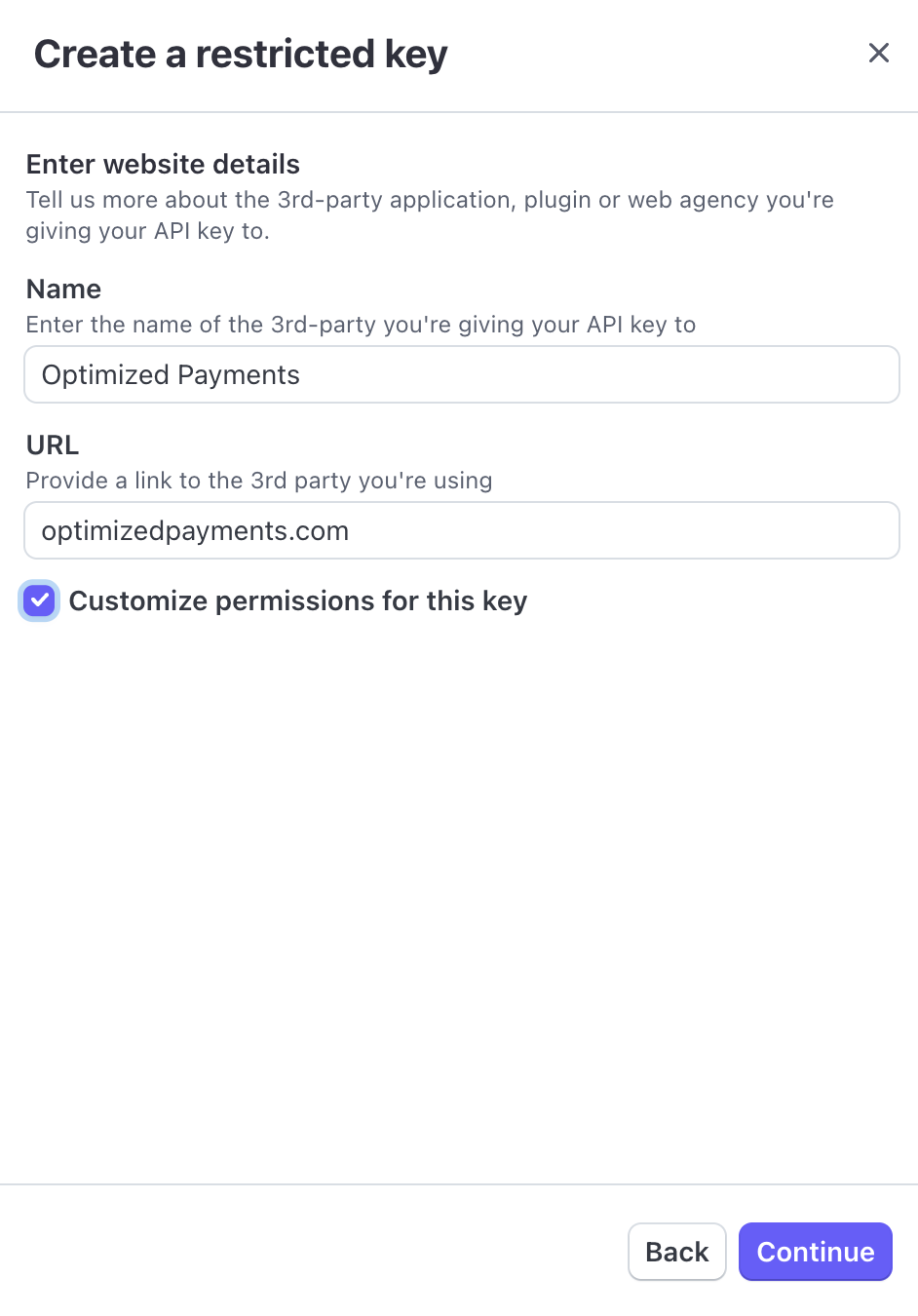
On the next screen, enter the following details then click Continue:
-
Name = Optimized Payments
-
Customize permissions for this key = checked
-
-
On the next screen, click None to set all permissions to none. In the next step you will update the items that need to have permissions.
-
Click Read for the following items:
-
Core
-
Balance
-
Charges and Refunds
-
Disputes
-
Files
-
-
Reporting
-
Report Runs and Report Types
-
-
-
Click Write for the following item:
-
Webhook
-
Webhook Endpoints
-
-
-
Click Create key.
-
You should now see the API key you just created on the list of restricted keys. Hover over the key and click to copy it.

-
Securely send this API key to your Optimized Payments Customer Success Representative.
-
When Optimized Payments adds this API key to their vault it will automatically generate the webhook connection.
Stripe support: https://support.stripe.com/
For your information
-
Harmonize will validate API access within 24–48 hours.
-
If using webhooks, you'll receive a test ping to confirm setup.
-
The onboarding team will notify you once daily ingestion is active.
-
For the Optimized Payments reporting system to download and import data automatically from your Stripe account, we must first get a key which allows us to securely access your data. This is a restricted key which only allows us to retrieve data for reporting and will not provide transactional functionality.