
Required Information
-
Access to the WorldPay iQ portal
-
SFTP connection to your worldpay account
-
Contact information for your WorldPay account representative
-
Worldpay company number(s) and name(s) as they appear in the IQ portal
Supported SFTP Reports
-
Net Settled Sales Report
-
Sessions Report
-
PINless Debit Detail
-
Fraud Alert
-
Chargeback Financial Report
Step 1 - Create the Optimized Payments iQ user
-
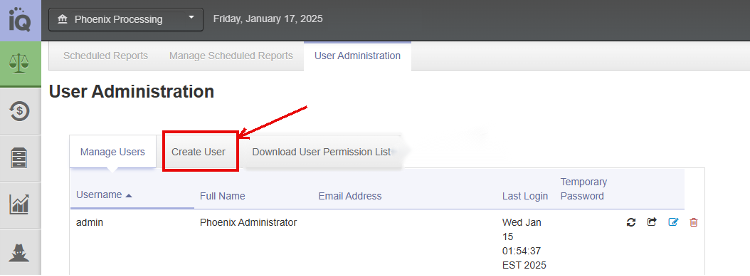
From the iQ Home page, click User Administration from the Home Page Navigation Bar. The User Administration page displays.
-
Click the Create User tab. The Create User screen appears, comprising the User Data panel, Permissions panel, and Read-only Permissions panel.
-
Enter the information for the new user in the User Data panel (all fields are required).
-
Use the Optimized Payments user name: paul.larsen
-
In the Permissions panel, scroll the Available selection box and select the following permissions. Click the selection arrows to move each one from the Available box to the Used box:
-
-
AuMatchReport
-
ChargebackSummaryReport
-
CustomerInsights
-
ExportFraudAlerts
-
FinancialReports
-
SearchTransactions
-
SessionReports
-
TxnSummaryReport
-
ViewAccountUpdaterTab
-
ViewApprovalsTab
-
ViewChargeback
-
ViewEcheckSettlementReport
-
ViewEcheckTab
-
ViewFraudDashboard
-
ViewQueryTransactions
-
Depending on your organization, some of these permissions may not be available.
-
Enter a generic password in the Password field, according to the following guidelines:
-
Must be between 12 and 24 characters in length.
-
Must have at least one upper-case letter, one lower-case letter, and one number.
-
Special characters allowed: -!@#$%^&*()_+.
-
Note: You must include the plus symbol (‘+’) and the country code in the phone number field. If the plus symbol is missing, iQ displays the error message, Invalid phone number format.
-
Click Save. A new user is created.
Note: Worldpay does not send an email with the new user information. Provide the new user with their username and temporary password, as well as your client name(s) as it appears in the IQ Portal.
-
Use the edit button (the blue pencil icon) on the new account to assign the SFTP folder for the account as RPTPLC. This enables daily SSR file delivery.
-
If you have any difficulties setting these up, your WorldPay representative will help.
Step 2 - Notify Optimized Payments
-
Obtain the exact merchant account name as it appears on the IQ portal, along with your WorldPay Company Account number(s).
-
Send these details to [email protected]. Optimized Payments will confirm once access has been validated.
WorldPay support: [email protected]
For your information
-
Once login access is granted, Harmonize will:
-
Log in and validate data visibility.
-
Schedule daily file transmissions.
-
Request any historical data required be posted on the account.
-
-
We will validate that dashboard data matches IQ portal data and that daily automated import is running smoothly.